WooCommerce Shipping Gateway Per Product: Complete Setup
Set up WooCommerce shipping per product: choose allowed shipping methods on each product, decide how mixed carts behave and add category and tag rules.
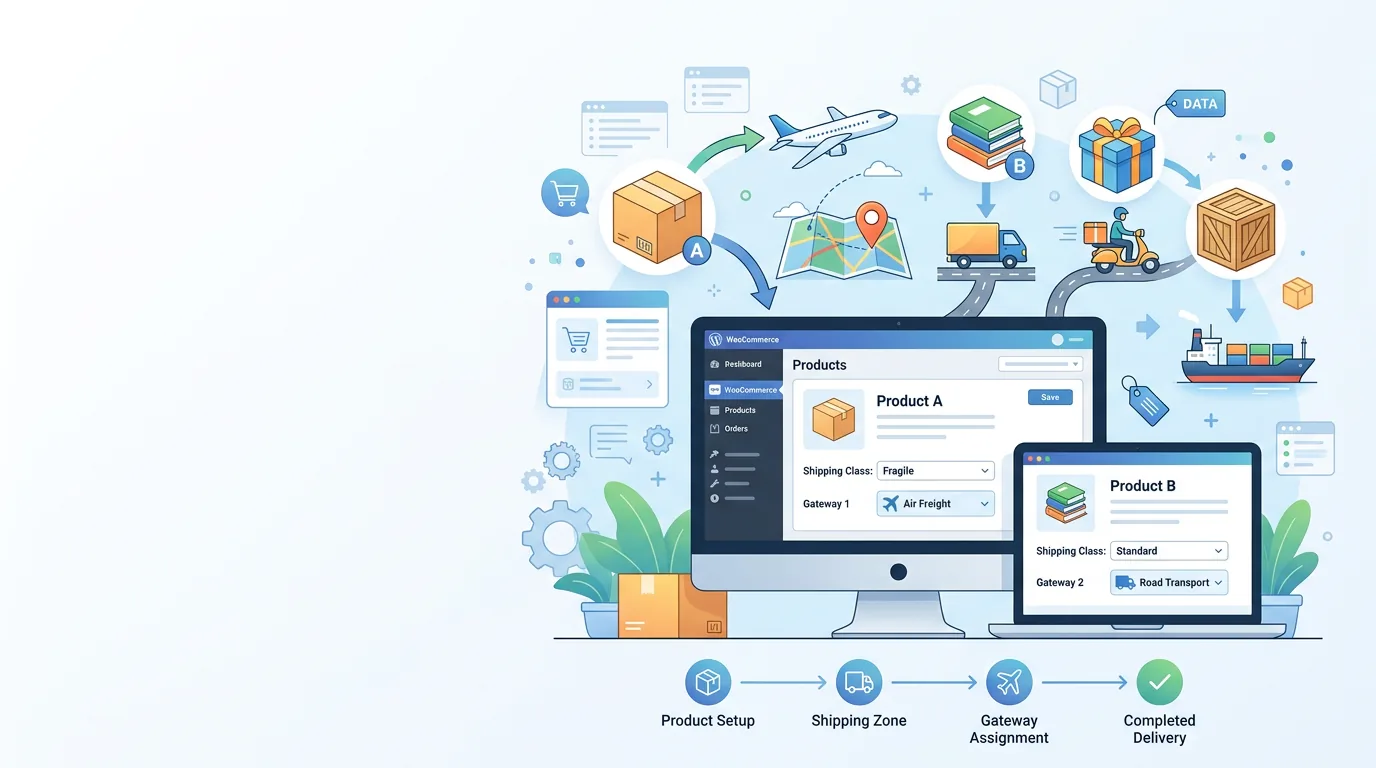
You sell a $15 t-shirt and a $400 industrial generator to the same customer. The t-shirt ships in a poly mailer for a few dollars, while the generator needs freight. With one flat rate for everything you either lose money on the generator or scare the buyer away with a freight price on a t-shirt.
This guide shows how to set shipping methods per product in WooCommerce with the Dreamfox plugin (also searched for as shipping gateway per product): choose the allowed methods on each product, decide how mixed carts behave, and use category and tag rules in the Premium version.
Why one shipping setup does not fit every product
WooCommerce offers the same shipping methods for every product that ships to a zone. That causes problems as soon as a catalog contains different kinds of goods:
- Heavy or bulky items need freight or pick-up, not a parcel rate or free shipping.
- Light items should not be offered an expensive method that only makes sense for large goods.
- Items you only hand over locally need pick-up, not a carrier.
Shipping classes help with the cost inside a method, but they do not hide methods per product. For that you need custom code or a plugin.
What the plugin does, and what it does not
The plugin filters the shipping methods you already set up in WooCommerce. It does not create rates or connect carriers.
- Free version: choose allowed shipping methods per product. Mixed carts use the methods that all products have in common.
- Premium version: category rules, tag rules, and more ways to handle mixed carts (see Step 3).
- Zones: methods belong to a shipping zone, so a product's selection is evaluated against the zone of the customer's address.
Step 1: set up shipping zones and methods
Go to WooCommerce → Settings → Shipping and create your zones, with the methods you want in each zone, for example Standard, Express, Freight and Local pickup. The plugin can only choose between methods that exist and are enabled here.
Step 2: choose the allowed methods on a product
- Open the product in the WooCommerce edit screen.
- In the sidebar, find the Choose shipping gateway box.
- Tick every shipping method this product may use.
- Update the product.
While that product is in the cart, methods that are not ticked are hidden. A product with nothing ticked can use every enabled method, so you only need to set the products that must be restricted.
Step 3: decide how mixed carts behave
Go to WooCommerce → Product Shippings and open the Cart Rules tab. The setting "Multiple products in cart with different shipping gateway" decides what happens when the products in a cart allow different methods.
| Option | Version | Result for a mixed cart |
|---|---|---|
| Only common gateways | Free and Premium | Only methods that every product allows |
| Do not show shipping gateway | Premium | No shipping method when the products' selections differ |
| Choose the cheapest gateway | Premium | One method: the cheapest of the allowed methods |
| Choose the expensive gateway | Premium | One method: the most expensive of the allowed methods |
| Let customer decide | Premium | All methods that any product allows |
With Only common gateways, a cart whose products share no method ends with no shipping options, so the customer cannot check out. Keep at least one shared method, such as Standard shipping, ticked on every product.
Step 4: category and tag rules (Premium)
Under the Per Categories and Per Tags tabs you can set allowed shipping methods for a whole category or tag, so new products inherit the rule. For a walkthrough see set a shipping method by product category.
Example setups
Heavy items. Tick only Freight and Local pickup on the generator. A cart with only that product never shows a parcel rate or free shipping.
Pick-up only products. Tick only Local pickup on products you hand over in person. See hide local pickup for specific products for the reverse: keeping pick-up away from products that must ship.
Express only for premium products. Tick Express on the products that qualify, and Standard on the rest. In a mixed cart, the cart rule decides whether the customer sees only the shared method or, in Premium, the cheapest, the most expensive or all allowed methods.
Zones and international orders
Methods are tied to a zone. If a product has only methods from one zone ticked and a customer from another zone adds it, no ticked method is available for that customer and no shipping options are shown. Tick at least one method for every zone you ship to.
Test before you go live
- Test each product on its own, then a cart with a heavy product and a light product.
- Test an address in every zone you ship to.
- Test on the classic checkout and on the block checkout.
- If you use a Premium option, test it with a mixed cart and check which method is offered.
Related guides
- Shipping options per product in WooCommerce
- Set a shipping method by product category
- Hide local pickup for specific products
- Shipping methods by user role
- Documentation in our help center
Conclusion
Shipping methods per product protect your margin and keep checkout relevant: heavy goods get freight or pick-up, light goods keep the cheap methods, and the cart rule decides what mixed carts do. Start with the products that cause the most trouble, keep one shared method on every product, and test a mixed cart. The rules in this guide are in the Dreamfox Shipping Methods per Product for WooCommerce plugin.
FAQ
- How do I set shipping methods per product in WooCommerce?
- Set up your shipping zones and methods in WooCommerce, then open a product and tick the methods it may use in the Choose shipping gateway box in the sidebar. Update the product. At checkout only the ticked methods are offered while that product is in the cart.
- Is shipping per product free?
- Choosing shipping methods per product is available in the free version, and mixed carts then use the methods the products have in common. Category rules, tag rules and the other mixed-cart options (hide shipping, cheapest, most expensive, let the customer decide) are Premium.
- What happens when products in the cart allow different shipping methods?
- In the free version only the methods that all products allow stay available. In Premium you choose under Cart Rules: show no shipping method, pick the cheapest or most expensive allowed method, or let the customer choose from the allowed methods.
- Why does checkout show no shipping options?
- Usually the ticked methods do not overlap for the products in the cart, or the ticked methods belong to another shipping zone than the customer's address. Tick at least one shared method on every product, and one method for every zone you ship to.
- Can I hide local pickup for certain products?
- Yes. Tick the methods the product may use and leave local pickup unticked. Local pickup then disappears whenever that product is in the cart.
- Does it work with the WooCommerce block checkout?
- Yes. The plugin filters the shipping rates through WooCommerce filters that both the classic checkout and the Cart and Checkout blocks use.
This article is part of our WooCommerce payments topic hub, where the related plugins and guides live together.