WooCommerce Shipping Options per Product: Add & Hide
Add, hide or restrict shipping options per product in WooCommerce. Show only the methods each item can use and fix mixed-cart conflicts, step by step.
Shoppers call them delivery options; WooCommerce calls them shipping methods. Default WooCommerce shipping zones are powerful but blunt: they apply the same set of shipping methods to every product in a zone. The minute your catalog mixes digital downloads with physical goods — or small accessories with oversized furniture — checkout starts surfacing options that make no sense.
Customers see "Local pickup" on a digital ebook, or "Letter post" on a 40 kg dining table. That confusion costs sales, and it shows up in your abandonment numbers long before anyone files a support ticket about it.
This guide covers exactly how to set up WooCommerce shipping options per product, with real-world examples, a step-by-step walkthrough, and the troubleshooting steps for the most common conflicts.
What "shipping per product" solves Per-product shipping rules let every SKU declare which shipping methods it is eligible for. When the customer reaches checkout, only the methods compatible with every item in the cart are shown.
Free downloads can skip shipping entirely. Bulky items can force a freight carrier. Refrigerated goods can be locked to a same-day courier. The cart, not your global settings, drives what is offered.
Native WooCommerce vs per-product shipping The default WooCommerce setup gives you three levers: shipping zones (by country/region), shipping classes (by product group), and method-level settings (flat rate, free shipping, local pickup). Together they cover most stores — until the catalog mixes product types.
| Capability | Native WooCommerce | Per-product plugin |
|---|---|---|
| Different rates per country | Yes (zones) | Yes (zones) |
| Different rates per product group | Yes (classes) | Yes (classes) |
| Hide a method on one specific SKU | No | Yes |
| Force one method on oversized goods | Workaround only | Yes |
| Auto-resolve mixed-cart conflicts | No | Yes |
| Tell the customer which item blocks checkout | No | Yes |
If your store only sells one product type, native settings are enough. If your cart mixes formats, weights, suppliers or fulfillment partners, native settings will leak invalid options.
Real-world use cases Per-product shipping rules are not a niche feature. The same pattern shows up across very different store types — wherever a single global rule cannot cover a mixed catalog.
- Mixed catalog stores: ebook + paperback + signed hardback editions of the same book, each with different shipping needs.
- Furniture and oversized goods: limit to freight or white-glove delivery, hide standard parcel options on items over 30 kg.
- Local-only products: fresh food, plants, or perishable items restricted to local courier or store pickup within a postcode radius.
- Digital products bundled with physical merch: hide all shipping methods when only the digital item is in the cart, re-enable them when a physical item is added.
- Dropshipping from multiple suppliers: each supplier's products only show their own fulfillment method, so customers cannot accidentally combine items that ship from different warehouses.
- Hazardous or restricted items: paint, batteries, or aerosols that cannot ship by air — air-mail methods are hidden automatically when one is in the cart.
- Subscription boxes: monthly boxes locked to a specific carrier with delivery-date guarantees, while one-off products use standard parcel.
- B2B vs B2C SKUs in the same catalog: pallet delivery shown only when a B2B-only SKU is in the cart.
Step-by-step: set up shipping options per product The setup takes about ten minutes per product type. Below is the workflow we recommend.
1. Install the plugin Install and activate [WooCommerce Shipping Gateway Per Product](/plugins/woocommerce-shipping-gateway-per-product). It hooks into the existing WooCommerce shipping system — no replacement, no migration of your existing zones.
2. Audit your current shipping methods Go to WooCommerce → Settings → Shipping. List every method that should ever be available in your store: standard parcel, express, freight, local pickup, digital (free), etc. Make sure each one exists in the relevant zone before you start assigning them.
3. Open a product and assign methods Edit any product. In the new "Shipping options" tab you see every shipping method available across your zones. Tick the ones this product is eligible for, untick the rest. Save.
4. Repeat per product type, not per product Use bulk-edit or copy from a template product for catalogs over fifty SKUs. Most stores end up with three to five "shipping templates" (digital, small parcel, oversized, refrigerated, freight) and apply them in bulk.
5. Test a mixed cart Add two products with incompatible rules to the cart and go to checkout. You should see only the intersection — methods both products allow. If the intersection is empty, the customer sees a clear conflict message naming the blocking item.
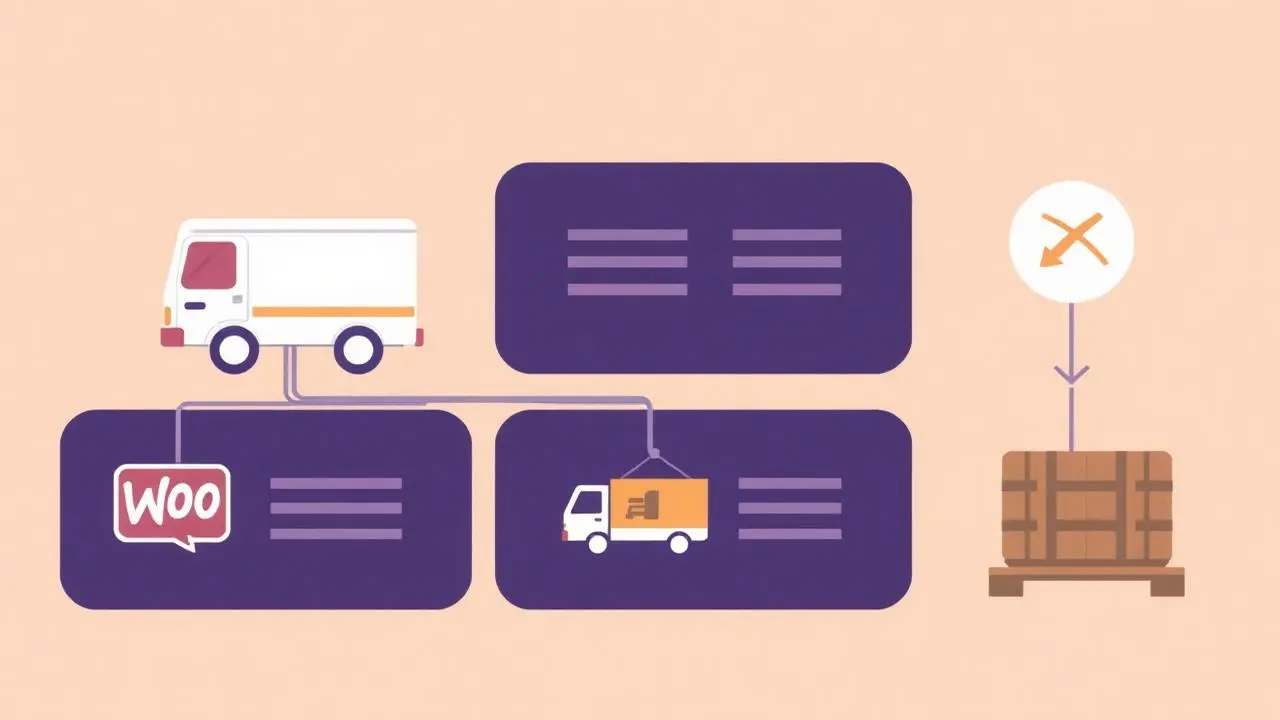
Handling the mixed cart Like with payment rules, the mixed cart is where most stores fail. The plugin computes the intersection of allowed shipping methods across all cart items.
If product A allows Standard or Express, and product B only allows Express, only Express is shown. If the intersection is empty the customer is told exactly which item is causing the conflict, so they can remove or split the order instead of abandoning it.
Troubleshooting common conflicts The same three issues account for most support tickets after a per-product shipping rollout.
- "No shipping methods available" — almost always means two products in the cart have non-overlapping rules. Check the conflict message in the cart; the named item is the one to adjust.
- A method shows that should be hidden — confirm the method is actually unticked in the product's Shipping options tab, not just disabled in a different zone.
- Local pickup appearing on digital-only carts — make sure your digital product has *no* shipping methods ticked at all. An empty selection means "free / no shipping required"; a wildcard would re-enable everything.
- Free shipping breaks for mixed carts — free shipping thresholds apply per cart total. If you want free shipping only on physical products over a threshold, combine the per-product rule with a minimum-amount condition on the free shipping method itself.
SEO and conversion impact Reducing checkout confusion is one of the highest-leverage conversion wins a WooCommerce store can make.
Stores that move from one global shipping rule to per-product rules typically report a 5–15% lift in checkout completion, because customers never see an impossible option and never have to email support to ask "can you actually ship this?". Fewer support tickets also means faster fulfillment and better reviews — both of which compound over time.
Pair it with payment rules If you already control payment methods per product, layering shipping rules on top is a no-brainer.
The two plugins are designed to work together: customers only ever see payment and shipping combinations that are actually possible for their cart. See our guide on WooCommerce payment gateways per product for the matching setup.
Conditional shipping methods in WooCommerce "Conditional shipping methods" is the broader pattern behind per-product rules: a method only appears when a condition is met. In practice stores need four condition types, and you can stack them.
- Product or variation — the base rule. The method must be allowed by every item in the cart, so mixed carts fall back to the intersection.
- Category — apply one rule to a whole category (for example: refrigerated goods only ship by next-day courier) so new SKUs inherit it automatically.
- User role — freight and pallet rates for wholesale accounts only, hidden from retail customers.
- Cart total or weight — combine the per-product rule with the method's own minimum-amount or weight condition so free shipping stays profitable.
Because the conditions intersect rather than override each other, you can express rules like "pallet freight is available only to wholesale customers, and only when every item in the cart is pallet-eligible" without touching PHP or a shipping-zone workaround. If you also need to restrict payment options with the same logic, see conditional payment gateways per product.
Frequently asked questions
Can I set different shipping rates per product instead of just hiding methods? Yes. Tick the methods the product is eligible for, then adjust each method's rate (flat rate, weight-based, etc.) in WooCommerce → Settings → Shipping. The plugin controls visibility; method-level settings control the price.
Does this work with WooCommerce Subscriptions? Yes. Subscription products are treated like any other product — assign their allowed methods in the product edit screen. Renewal orders inherit the same rules.
Will this slow down my store? No. The plugin filters shipping methods at the moment the cart is calculated, the same point at which WooCommerce itself runs its shipping logic. There is no extra database query per pageview.
Can I hide a method for a whole product category instead of per product? Yes, with bulk edit. Filter by category in the products list, select all, choose "Edit" from the bulk action, and update the shipping options field. The change applies to every selected product.
How do I make shipping methods conditional on user role? Combine the per-product rule with a role condition in the plugin settings. The method then only appears for customers in the selected role — the standard setup for wholesale freight rates that retail customers should never see.
What happens during checkout if no shipping method is available? The customer sees a clear message naming the conflicting item and is invited to remove it or split the order. Without the plugin, WooCommerce just shows an empty shipping section, which is the single largest cause of silent abandonment.
Does this work with WooCommerce variable products? Yes — and this is where most stores need it most. Each variation can have its own allowed shipping methods, so a "Vinyl - 12 inch" can require rigid mailer while "Vinyl - 7 inch" allows letter post. See our [WooCommerce variable product guide](/blog/woocommerce-variable-product-guide-2026) for the full setup.
Will it conflict with WooCommerce Shipping & Tax (the official plugin)? No. Our plugin filters the *visibility* of methods at the cart level; the official plugin handles *rates* via the WooCommerce.com API. They operate at different layers and complement each other.
Can I export and import per-product shipping rules? Yes, the rules are stored as product meta and are included in the standard WooCommerce CSV exporter. This makes it easy to migrate rules between staging and production or to bulk-update via spreadsheet.
Next step Per-product shipping rules are the single biggest checkout fix for any WooCommerce store with a mixed catalog. Install [WooCommerce Shipping Gateway Per Product](/plugins/woocommerce-shipping-gateway-per-product), apply the 5-step setup above, and watch your "no shipping available" support tickets disappear within a week.
This article is part of our WooCommerce shipping topic hub, where the related plugins and guides live together.