Show WordPress Customer Details in HelpSpot Tickets
Connect HelpSpot Live Lookup to WordPress so agents see a customer name, email and phone in the ticket, protected by an auth key.
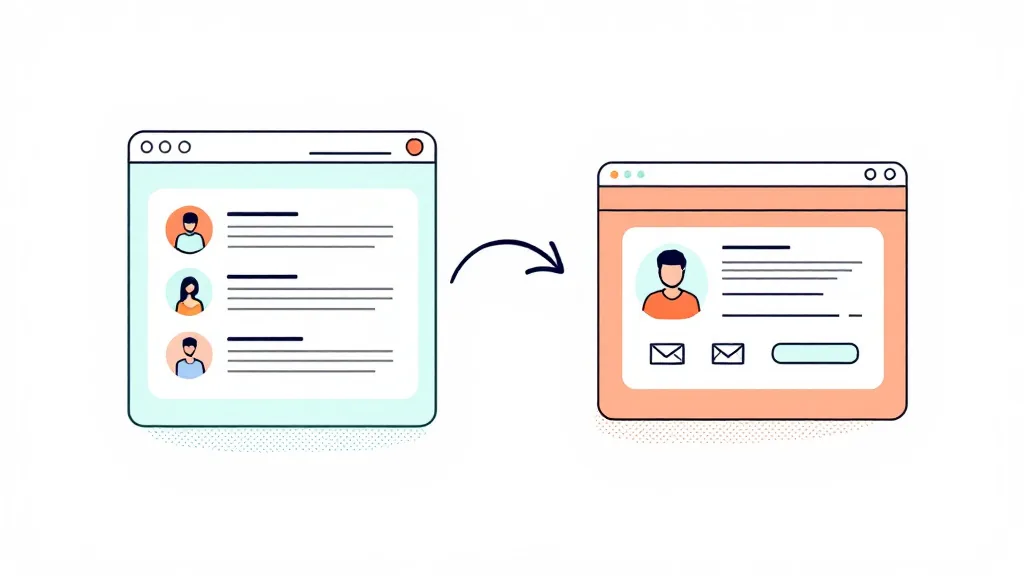
A customer writes to your support desk and the agent opens WordPress in another tab to find out who they are. Across a day that is a lot of tab switching. HelpSpot has a feature for this: Live Lookup asks an external system for customer details and fills them into the ticket. This guide shows how to connect it to a WordPress site, so agents see the name, email address and phone number without leaving HelpSpot.
What HelpSpot Live Lookup does
Live Lookup lets HelpSpot query another system while an agent works on a request. HelpSpot sends the details it already has about the person, such as email and name, to a URL you configure. That URL returns the customer record, and HelpSpot shows it in the ticket.
The URL must be on a system that knows your customers. On a WooCommerce or membership site that is WordPress, because your customers are WordPress users.
What the WordPress plugin adds
Dreamfoxmedia Helpspot Live Lookup adds a lookup endpoint to your site. HelpSpot sends a request with the customer ID, email, first name, last name, phone and an authentication key. The plugin checks the key, searches your WordPress users and returns the customer details to HelpSpot.
It is designed to need very little on the WordPress side: you set one auth key, and the rest is configured in HelpSpot.
Secure by design
A lookup endpoint that returns customer data must not be open. The plugin only responds when the auth key in the request matches the key you saved, and the comparison is constant-time. Without a matching key the request gets your normal homepage, so the endpoint does not reveal that it exists.
Practical advice for the key:
- use a long, random value (the settings field requires at least 15 characters)
- do not reuse a password
- change it in both places if it was ever shared
- serve the site over HTTPS, so the key is not sent in plain text
Set it up
- Install and activate the plugin on the WordPress site that holds your customers.
- Open the plugin settings and enter an auth key.
- Copy the URL shown on the settings page. It is your site address followed by `?authkey=` and your key.
- In HelpSpot, open the Live Lookup settings and enter that URL as the lookup address.
- Open a request in HelpSpot from a known customer and check that the customer details appear.
Keep the exact steps in HelpSpot next to the HelpSpot documentation for your version, because menu names can differ between releases. The setup details for our plugin are in the knowledge base.
What the agent sees
The details come from the matching WordPress user: name, email address and phone number. That is enough for an agent to confirm who is writing and to reply with context. It saves the manual search in WordPress, and agents work from one screen.
When no customer is found
Check these first:
- Auth key mismatch. If the key in HelpSpot's URL differs from the saved key, the request returns the normal homepage instead of customer data.
- No matching user. The customer wrote from an address that is not the email of their WordPress account. Look up the user manually and compare the addresses.
- Cached responses. If a caching layer or security plugin intercepts the request, exclude the lookup URL from it.
- HTTP instead of HTTPS. Make sure HelpSpot calls the exact URL shown in the plugin settings.
Works with any theme and WooCommerce
The endpoint does not depend on your theme. It works on any WordPress site and in a WooCommerce store, because it reads WordPress users.
Related reading
If you run a WooCommerce shop and want checkout rules that reduce support questions in the first place, read our guide on payment methods per product and shipping options per product. The plugin is also listed on our plugins page.
FAQ
- What does the HelpSpot Live Lookup plugin do?
- It adds a protected lookup endpoint to WordPress. HelpSpot sends customer details and an auth key, and the plugin returns the matching WordPress user's name, email address and phone number.
- How is the lookup endpoint protected?
- It only responds when the supplied auth key matches the key saved in the plugin. Without a matching key, visitors just see your normal homepage.
- Does it work with any WordPress theme?
- Yes. It does not depend on your theme and works on any WordPress site, including WooCommerce stores.
- Why does HelpSpot not show a customer?
- Usually the auth key differs from the saved key, or the email in the ticket does not match the email of a WordPress user. Also check that no caching or security layer blocks the lookup URL.
- Do I need to configure anything in WordPress besides the auth key?
- No. After you set the auth key in the plugin settings, the rest of the Live Lookup configuration is done in HelpSpot.