WooCommerce Payment Gateway Per Product: Complete Setup
Set up a WooCommerce payment gateway per product: choose allowed gateways on each product, add category and tag rules, and set a fallback gateway.
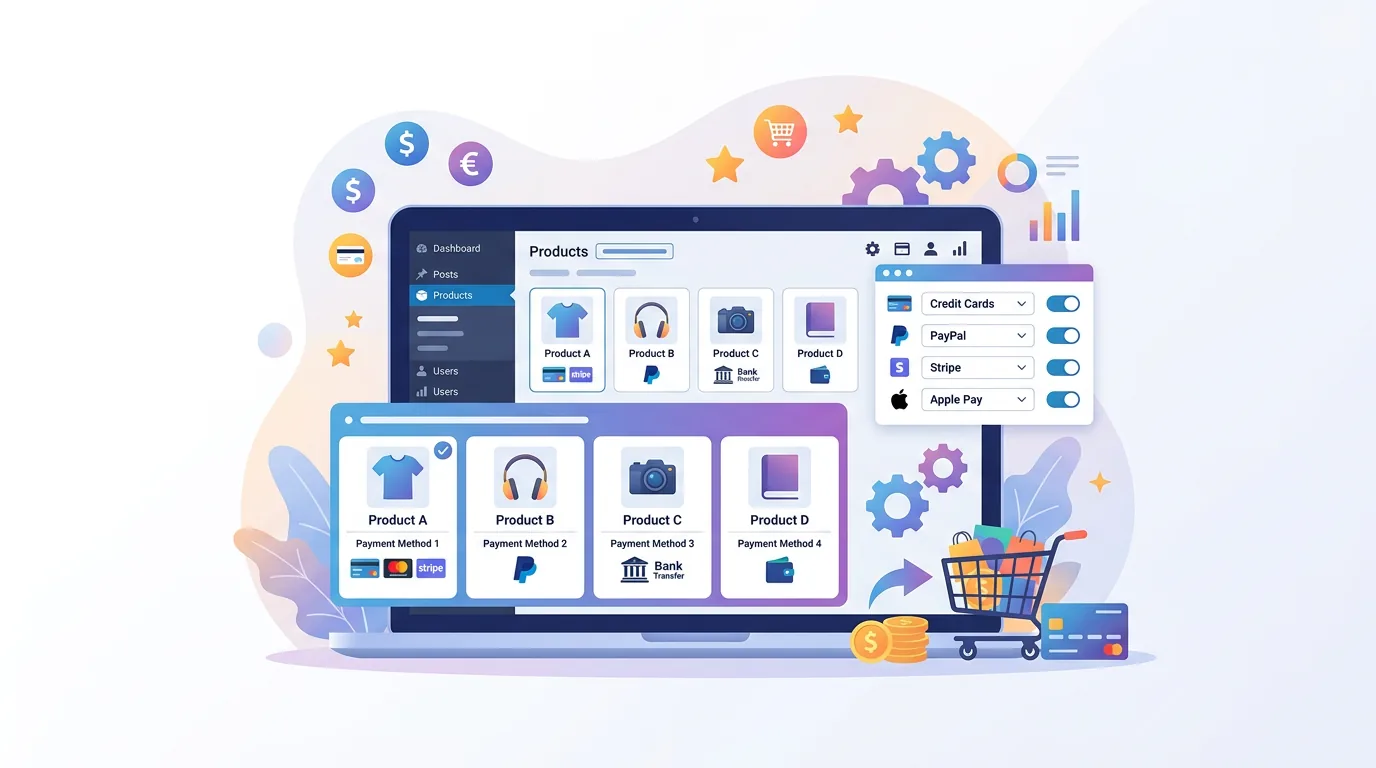
A customer adds a $12 e-book to the cart and sees Cash on Delivery at checkout, an option that makes no sense for a download. On the same store a wholesale buyer is offered the same payment methods as a consumer and cannot pay on invoice. WooCommerce shows every enabled gateway for every product, so both problems come from one global list.
This guide shows how to set a WooCommerce payment gateway per product with the Dreamfox plugin: choose the allowed gateways on each product, add category and tag rules, and set a fallback so checkout never ends on an empty payment step.
Why one global gateway list causes problems
WooCommerce enables gateways for the whole store. Once Stripe, PayPal and Cash on Delivery are on, they appear for every product. That creates three predictable frictions:
- Methods that do not fit the product. Cash on delivery on a digital download, or a bank transfer on an item you want paid instantly.
- Methods that do not fit the buyer. Invoice payment meant for approved wholesale orders is shown to everyone, or card payment is shown where you want invoices only.
- Recurring products on the wrong gateway. Subscription products need a gateway that supports recurring payments.
What the plugin does, and what it does not
The plugin removes gateways at checkout based on the products in the cart. It never adds a gateway that WooCommerce has disabled or hidden.
- Free version: choose allowed gateways per product, and set a default fallback gateway.
- Premium version: category rules, tag rules, include/exclude logic, a choice between a default gateway or no payment methods as fallback, and priority support.
- Not included: there is no rule builder, and no conditions on user role or cart total. For role-based payments see payment gateway based on user role.
Step 1: enable the gateways you want to offer
Go to WooCommerce → Settings → Payments and enable every gateway you plan to use somewhere in the store. The plugin can only hide gateways that are enabled, so a gateway that is switched off here will never show up, whatever you tick on a product.
Step 2: choose the allowed gateways on a product
- Open the product in the WooCommerce edit screen.
- In the sidebar, find the Choose payment gateway box.
- Tick every gateway this product may use.
- Update the product.
While that product is in the cart, gateways that are not ticked are hidden. A product with nothing ticked does not restrict anything, so leave the box empty only when you want the store defaults to apply.
Step 3: choose a fallback gateway
Go to WooCommerce → Product Payment and open the Default Gateway tab. Pick a gateway that your whole catalog can use. If the combined rules leave nothing for a cart, checkout shows this gateway instead of an empty payment step. The Premium version also lets you choose between showing the default gateway or no payment methods at all.
Step 4: category and tag rules (Premium)
Under the Per Categories and Per Tags tabs you can allow or exclude gateways for a whole category or tag, so new products inherit the rule. These rules are used only when none of the products in the cart has its own gateway selection. As soon as one product has a selection, that selection decides for the whole cart. For a walkthrough see how to restrict a payment method by product category.
What happens in a mixed cart
The plugin looks at every product in the cart and keeps only the gateways that all products with a selection allow, the intersection of the selections.
| Product A allows | Product B allows | Checkout shows |
|---|---|---|
| Stripe, PayPal | Stripe | Stripe |
| Stripe, PayPal | Nothing ticked | Stripe, PayPal |
| Stripe | PayPal | Nothing from the rules, so your fallback gateway if you set one |
If a cart ends up with an unexpected result, follow the steps in fix mixed-cart payment conflicts.
Example setups
Digital downloads versus physical goods. Tick Stripe and PayPal on the downloads and leave Cash on Delivery unticked. On physical products that you deliver locally, also tick Cash on Delivery. Digital products never offer a method that cannot work for them. A step-by-step version is in disable cash on delivery for specific products.
Wholesale invoice products. Tick Invoice and one card gateway on the wholesale products. Consumers who only buy retail products never see Invoice. Keep a shared gateway on every product so a mixed cart can still be paid.
Subscription products. Tick only gateways that support recurring payments. Whether renewals work depends on the gateway itself, so test a renewal before you roll the rule out.
Plugin, custom code or native WooCommerce
| Approach | What you get | What it costs you |
|---|---|---|
| Native WooCommerce | Enable or disable a gateway for the whole store | No per-product control |
| Custom code | Full control through the `woocommerce_available_payment_gateways` filter | You write and maintain it, and test it after each update |
| Per-product plugin | A box on each product, category and tag rules (Premium), a fallback gateway | A plugin to keep updated |
Edge cases that break checkout
- Ticking nothing and expecting a block. A product with nothing ticked restricts nothing.
- A ticked gateway that is not available. It is disabled in WooCommerce, or does not apply to the customer's country, currency or cart total.
- No fallback gateway. A cart whose selections do not overlap ends on an empty payment step.
- Product rules versus category rules. A product-level selection takes over from category and tag rules.
Test before you go live
- Test each product on its own, then a cart with two products whose selections do not overlap.
- Test as a guest and as a logged-in customer, on the classic checkout and on the block checkout.
- Check that the fallback gateway shows when nothing else is left.
- Roll out in batches by category so problems are easy to trace.
Related guides
- Different payment methods for different products
- Restrict a payment method by product category
- Fix mixed-cart payment conflicts
- Documentation in our help center
Conclusion
Setting a payment gateway per product keeps checkout relevant: digital products stay away from cash on delivery, wholesale products can offer invoice, and a fallback gateway makes sure a cart can always be paid. Start with one product type, test a mixed cart, then extend the rule to your catalog. The rules in this guide are in the Dreamfox Payment Gateway per Product for WooCommerce plugin.
FAQ
- How do I set a different payment gateway per product in WooCommerce?
- Install a per-product gateway plugin, open the product edit screen, and tick the gateways that product may use in the Choose payment gateway box in the sidebar. Update the product. At checkout only the ticked gateways stay available while that product is in the cart.
- Is payment gateway per product free?
- Per-product selection and a default fallback gateway are available in the free version. Category and tag rules, include/exclude logic and the choice between a default gateway or no payment methods as fallback are Premium.
- What happens when products in the cart allow different gateways?
- Only the gateways that every product with a selection allows stay available. A product with nothing ticked does not restrict anything. If no gateway is left, the plugin shows your fallback gateway when you have set one.
- Can I hide cash on delivery for digital products?
- Yes. On each digital product tick the gateways it may use, such as Stripe and PayPal, and leave cash on delivery unticked. Cash on delivery then disappears whenever that product is in the cart.
- Does it work with the WooCommerce block checkout?
- Yes. The rules are enforced on both the classic shortcode checkout and the Cart and Checkout blocks, including the fallback gateway.
- Can I set payment gateways by user role or cart total?
- Not with this plugin. It works per product, category and tag. Role-based payment rules are covered in our guide on payment gateways based on user role.
This article is part of our WooCommerce payments topic hub, where the related plugins and guides live together.