Fix WooCommerce Mixed-Cart Payment Conflicts
Troubleshooting guide: resolve mixed-cart payment gateway conflicts in WooCommerce, hide invalid methods at checkout and recover lost B2B orders.
This guide walks through how to set a different WooCommerce payment gateway per product. Most stores start with one or two gateways enabled globally — Stripe, PayPal, maybe a local bank transfer. That works until your catalog grows.
Suddenly you have digital downloads that should never be paid by invoice, B2B products that should never go through credit card, or subscription products that only work with one specific processor. The default WooCommerce settings give you no way to scope a gateway to a single product.
The result is failed orders, support tickets, and lost revenue. Use this guide as your reference for fixing all of it at the product level.
What "payment gateway per product" actually means The idea is simple: every product in your catalog can declare which payment gateways are allowed for it. When a customer adds that product to the cart, only the allowed gateways appear at checkout.
If they remove the product, the original set of gateways comes back. This gives you precise control over how each item is paid for, without writing a single line of code.
Why store owners need this in 2026 There are four recurring reasons store owners reach for per-product payment rules in 2026. Each one maps to a real business risk that the default WooCommerce settings cannot solve.
- Compliance and fraud control: some products (gift cards, prepaid services, high-ticket electronics) have a much higher chargeback rate on credit card. Limiting them to bank transfer or a verified wallet drops chargebacks dramatically.
- B2B vs B2C in the same store: wholesale customers expect invoice or SEPA; consumers expect Apple Pay and iDEAL. A single global gateway list cannot serve both.
- Local payment methods: if you sell to the Netherlands you need iDEAL, to Germany you need Klarna, to Brazil you need Pix. Per-product targeting lets you only show local methods where they make sense.
- Subscription and recurring billing: only certain gateways tokenize cards. Recurring products must restrict checkout to those.
How to set it up Install **WooCommerce Payment Gateway Per Product** by Dreamfox Media. In every product's edit screen you get a new "Payment gateways" panel where you tick the methods allowed for that product.
Save the product and the rule is live. There is no global configuration to maintain — the per-product setting always wins, which keeps the mental model simple as your catalog grows.
Handling the mixed cart The hardest part of any per-product gateway logic is the mixed cart: what happens when a customer adds two products with conflicting payment rules?
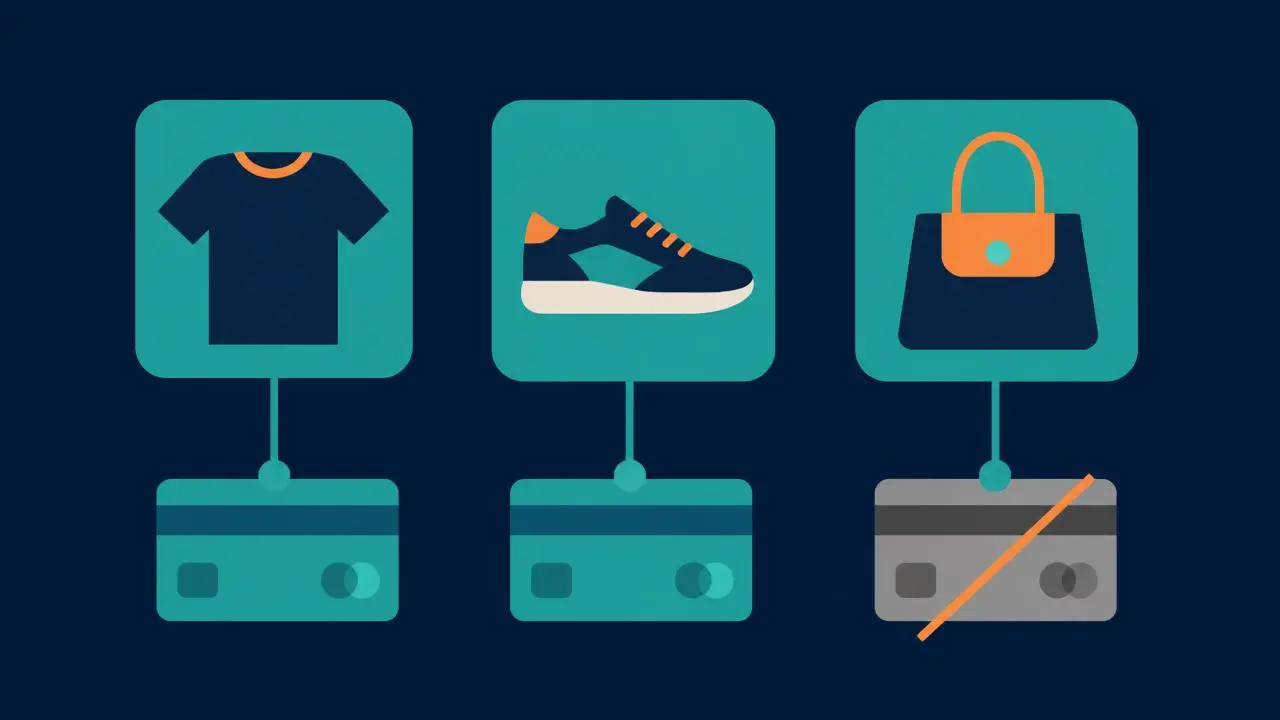
The plugin handles this by computing the intersection of allowed gateways across all cart items. If product A allows Stripe and PayPal, and product B only allows Stripe, the checkout will only show Stripe.
If the intersection is empty, the customer is told which item is the conflict so they can remove it — instead of seeing an empty payment section and bouncing.
Free vs premium The free version on WordPress.org gives you category-based gateway restriction. That is enough for stores with a handful of clearly separated product types.
The premium version adds per-product rules, role-based rules, and the mixed-cart conflict resolver. For any store with more than a handful of SKUs the premium version pays for itself in the first month from recovered checkouts.
Common mistakes to avoid Before you roll per-product rules out across the catalog, watch out for three traps that we see on almost every audit.
- Hiding all gateways on a product (leaves the customer with no way to pay)
- Forgetting to re-test the cart after enabling a new gateway globally
- Not whitelisting your default gateway as a fallback on shipping-only products
Worked example: a mixed B2C + B2B catalog Imagine a stationery store. The retail catalog ships paper, pens and notebooks paid by card or iDEAL. The B2B side sells branded merchandise paid on invoice with a 14-day net term. Without per-product gateway control you have three bad options: enable invoice for everyone (consumers abuse it), disable invoice entirely (you lose the B2B contracts), or run two separate WooCommerce installs (operational nightmare).
With per-product gateway rules you scope "Invoice" only to the wholesale SKUs. Retail customers never see it; B2B customers see it on the products that allow it. If a B2B customer adds a retail item to the same cart, the intersection drops back to card-only — and the conflict message names the retail item so they can split the order. One store, two business models, zero confusion.
How to hide PayPal for specific products in WooCommerce PayPal is the single most common gateway stores want to hide selectively. The usual reasons: PayPal's fee structure kills the margin on low-ticket items, PayPal blocks certain product categories in its acceptable-use policy, or a B2B invoice SKU should never be paid with a consumer wallet.
The setup takes under a minute per product. Open the product, go to the Payment options tab, and untick PayPal while leaving your other gateways ticked. Save. PayPal now disappears from checkout whenever that product is in the cart — and because the plugin computes the intersection across all cart items, a cart mixing a PayPal-blocked item with a normal item also hides PayPal automatically.
Three patterns worth copying:
- Hide PayPal on high-ticket items — keep card and bank transfer only, so a chargeback on a €3,000 order cannot be raised through PayPal's buyer-protection window.
- Hide PayPal on restricted categories — supplements, vape, CBD and firearms accessories are all on PayPal's restricted list. Hiding it per category prevents an account freeze.
- Hide PayPal on wholesale SKUs — B2B buyers should land on invoice or SEPA, not a consumer wallet with a 3.4% fee.
Conditional payment gateways: rules beyond the product Per-product rules are the foundation, but most real stores need conditional payment gateways — rules that also react to who the customer is and what the cart looks like. The premium version supports three condition types you can stack:
- By product or variation — the base rule; the gateway must be allowed by every item in the cart.
- By user role — show "Invoice" only to the wholesale role, hide "Cash on delivery" for guests.
- By category — apply one rule to an entire category so new SKUs inherit it automatically.
Because the conditions intersect rather than override, you can express things like "invoice is available only to wholesale customers, and only when the cart contains no retail items" without writing a single line of PHP.
Pairing with shipping rules Payment rules in isolation only solve half the checkout problem. The other half is shipping: a customer who selects "Pay by invoice" on a 40 kg crate still needs a freight shipping method to be available, not a 1 kg parcel rate. Layer per-product shipping rules on top of payment rules and the checkout only ever shows combinations that are physically and commercially valid. See [WooCommerce shipping options per product](/blog/woocommerce-shipping-options-per-product) for the matching setup, including [conditional shipping methods](/blog/woocommerce-shipping-options-per-product).
SEO and conversion impact The conversion impact of removing impossible payment options at checkout is significant. We typically see a 4–9% lift in completed checkouts after a per-product gateway rollout, with the biggest gains on mixed B2C/B2B stores. There is also a measurable drop in support tickets: "I can't see iDEAL" or "Why isn't invoice an option?" disappears almost entirely. Fewer tickets means faster fulfillment and better review scores, which compound in organic search rankings over the following months.
Rollout checklist Before you flip the switch on a live store, walk through this short list:
- Audit every currently enabled gateway in WooCommerce → Settings → Payments. Document which methods exist before you touch product-level rules.
- Pick a fallback gateway (usually your most-used card processor) that every product allows by default.
- Roll out per-product rules in batches by category, not all at once. This makes problems easy to isolate.
- Test a mixed cart with two products that have non-overlapping rules. Confirm the conflict message names the right item.
- Watch your support inbox for 48 hours after rollout. Most issues surface within the first day.
Frequently asked questions
Can I restrict payment gateways by user role instead of per product? Yes. The premium version of [WooCommerce Payment Gateway Per Product](/plugins/woocommerce-payment-gateway-per-product) supports role-based rules, so you can show "Invoice" only to users with the wholesale role regardless of what's in the cart.
Will this work with subscription products? Yes. Subscription products are treated like any other product: assign the allowed gateways in the product edit screen. Renewal orders automatically inherit the same rules, so a subscription that started on Stripe will keep renewing on Stripe.
What happens if the cart intersection is empty? The customer sees a clear message identifying which item is causing the conflict and is invited to remove it or split the order. Without the plugin, WooCommerce would show an empty payment section — the single most common cause of silent checkout abandonment.
Does it work with WooCommerce Blocks checkout? Yes. The plugin hooks into the cart-calculation step, which runs identically under both the classic shortcode checkout and the new block-based checkout.
How do I handle guest checkout vs logged-in customers? Per-product rules apply to both. Role-based rules require the customer to be logged in (since guests have no role). For B2B stores we recommend requiring an account for the wholesale catalog and leaving guest checkout enabled for retail.
Migrating from a globally-enabled gateway Most stores that adopt per-product gateway rules already have one or two gateways enabled globally. Migrating safely takes three passes. **First pass**: keep every global gateway enabled, but add per-product rules only to your highest-risk SKUs (subscriptions, high-ticket B2B, chargeback-prone categories). Watch the order log for 7 days. **Second pass**: roll the rules out by category in batches of 10–20 products. **Third pass**: once 90%+ of the catalog has explicit rules, tighten the global defaults. This three-pass approach avoids the most common failure mode — silently breaking checkout for a product nobody noticed didn't have a rule yet.
Reporting and visibility The hidden benefit of per-product gateway rules is the analytics they unlock. Once each product declares its allowed gateways, you can finally answer questions like "what percentage of revenue actually went through Klarna?" by product category, or "which products are most often paid by invoice?" — questions that are nearly impossible to answer with global gateway settings. Pipe the order metadata into a simple monthly dashboard (Looker Studio works fine) and you'll spot pricing-strategy opportunities you'd otherwise miss for years.
Next step If you also need to control which shipping method is available per product, pair this plugin with our [WooCommerce Shipping Gateway Per Product](/plugins/woocommerce-shipping-gateway-per-product). The two work together so checkout always shows the right options for what is actually in the cart.
This article is part of our WooCommerce payments topic hub, where the related plugins and guides live together.