Category Discounts vs Coupons in WooCommerce: Stop the Clash
Why WooCommerce category discounts and coupons stack the wrong way, how discount priority works, and how to keep cart totals right during a category sale.

You set up a 20% sale on your entire Apparel category, but customers are still paying full price for items with existing sale tags, your shipping discount is eating your margin, and the checkout total shows a negative number when a customer applies a store-wide coupon on top of it. Category-wide promotions are a proven way to move volume, yet the native coupon system forces you to juggle priority settings, exclude rules, and math edge cases that most store owners only discover after losing revenue. A properly configured woocommerce category discount stops these leaks by locking down exactly which products qualify, how the discount percentage applies, and whether shipping gets caught in the discount calculation. If you want the category rules themselves handled automatically, our WooCommerce category discount plugin applies them without touching coupons.
Why Category Discounts Outperform Manual Coupon Entry
Applying discounts product by product works fine for ten items, but it becomes unmanageable once your catalog grows. When you add a new shirt to the Apparel category, you should not have to remember to update a coupon exclusion list or manually enter a sale price. Category discounts solve this by attaching the promotion to the taxonomy instead of the individual post ID. This means new products, variations, and bulk imports inherit the rule automatically.
Types of Category Discounts
Store owners typically run one of three category-wide structures:
- Flat percentage off the category: A fixed woocommerce discount percentage, such as 15% off all Home Decor items. This is the most common approach because it scales cleanly with cart value.
- Tiered quantity breaks: The discount increases as the customer adds more units from the category. This is a classic woocommerce bulk discount strategy used in wholesale and B2B stores.
- Fixed cart discount tied to a category: A flat $10 reduction applied when the Apparel category reaches a minimum cart subtotal. This is useful when you want to guarantee a specific incentive amount regardless of item price.
Benefits of Offering Category Discounts
Category discounts reduce the administrative overhead of managing hundreds of individual sale prices. They also create a psychological effect: shoppers see a banner that says "20% Off All Kitchenware" and feel compelled to browse the category, increasing average order value. Because the discount is attached to the category slug, you can launch and pause promotions from a single settings page instead of editing product meta for every item.

How Category Discounts Work With WooCommerce Native Coupons
WooCommerce ships with a built-in coupon engine that supports category restrictions, but the native system has hard limits that trip up store owners running complex promotions.
Category Discounts in WooCommerce's Native Coupon System
When you create a coupon, you can set the "Apply to categories" field under the "Usage restriction" tab. WooCommerce then checks every cart item to see if it belongs to the selected category. If it does, the discount applies. However, the native system does not let you:
- Set different discount percentages for different categories in a single rule.
- Exclude specific products inside a category without manually adding them to an exclusion list.
- Prevent the discount from applying to shipping or tax unless you toggle global settings.
- Create quantity-based tiered discounts that change the percentage based on how many items from the category are in the cart.
The Priority Problem
When a customer applies a store-wide coupon and a category-specific coupon at the same time, WooCommerce calculates them in the order defined by the "Coupon priority" setting. If you do not set this correctly, the store-wide coupon applies first, reducing the cart subtotal, and then the category coupon applies to the already-discounted total. This double-dipping can push your margin into negative territory. Conversely, if the category coupon applies first, the store-wide coupon may not trigger because the subtotal no longer meets the minimum spend requirement.
Comparison: Native Coupons vs Dedicated Category Discount Rules
| Feature | WooCommerce Native Coupons | Dedicated Category Discount Rules |
|---|---|---|
| Apply to multiple categories in one rule | No, requires separate coupons | Yes, single rule covers multiple categories |
| Tiered quantity discounts | No | Yes, percentage increases with quantity |
| Exclude specific products inside a category | Manual exclusion list required | Automatic exclusion or inclusion toggles |
| Prevent discount on shipping | Global setting only | Rule-level toggle |
| Visual badge on product page | No | Yes, with plugin support |
| Priority conflict handling | Basic | Advanced rule engine with conflict resolution |
How to Add a Discount to a Category in WooCommerce
The most reliable way to run category discounts without breaking cart math is to use a dedicated rule engine that sits on top of WooCommerce and handles the priority, exclusions, and calculation order automatically.
Step 1: Install and Activate the Plugin
Navigate to Plugins > Add New in your WordPress admin. Upload the ZIP file for Dreamfox Category Price Manager for WooCommerce, or install it directly from the repository if available. Activate the plugin and verify that a new menu item appears under WooCommerce > Category Discounts.
Step 2: Create a Discount Rule
Go to WooCommerce > Category Discounts > Add New Rule. You will see a form with the following fields:
- Rule Name: Enter a descriptive name like "Summer Apparel 20% Off".
- Category Selection: Choose the categories this rule applies to. You can select multiple categories, and the rule will apply to any product belonging to at least one of them.
- Discount Type: Select "Percentage" for a woocommerce discount percentage, "Fixed cart" for a flat amount, or "Fixed product" for a per-item reduction.
- Discount Value: Enter the percentage or amount. For example, 20 for 20% off.
- Minimum Quantity: Set this to 1 if you want the discount to apply to a single item, or higher if you want to enforce a woocommerce bulk discount threshold.
- Maximum Quantity: Optional. Use this to cap the discount, such as applying 20% off only to the first 10 items from the category.
Step 3: Customize the Discount Rule
Click the Advanced Settings tab to configure the edge cases that break native coupons:
- Exclude Specific Products: Add product IDs or search by name to exclude items that are already on sale or have thin margins. This prevents the discount from stacking on top of an existing sale price.
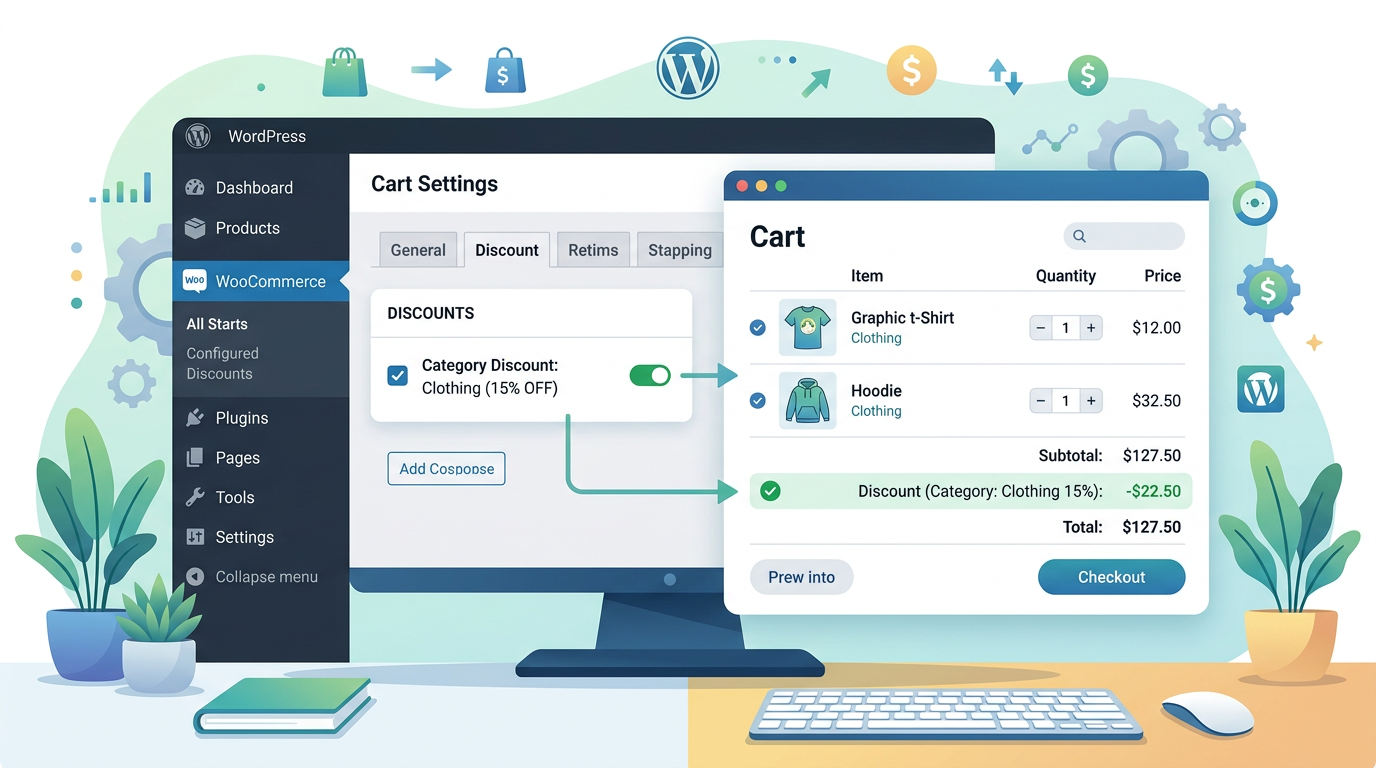
- Apply to Cart Subtotal Only: Toggle this on to ensure the discount percentage applies only to product prices, not shipping or taxes. This is critical for protecting your margin.
- Coupon Priority: Set the rule priority to "High" if you want it to apply before store-wide coupons, or "Low" if you want it to apply after. The plugin calculates the final total using the priority order you define, so you can predict exactly what the customer pays.
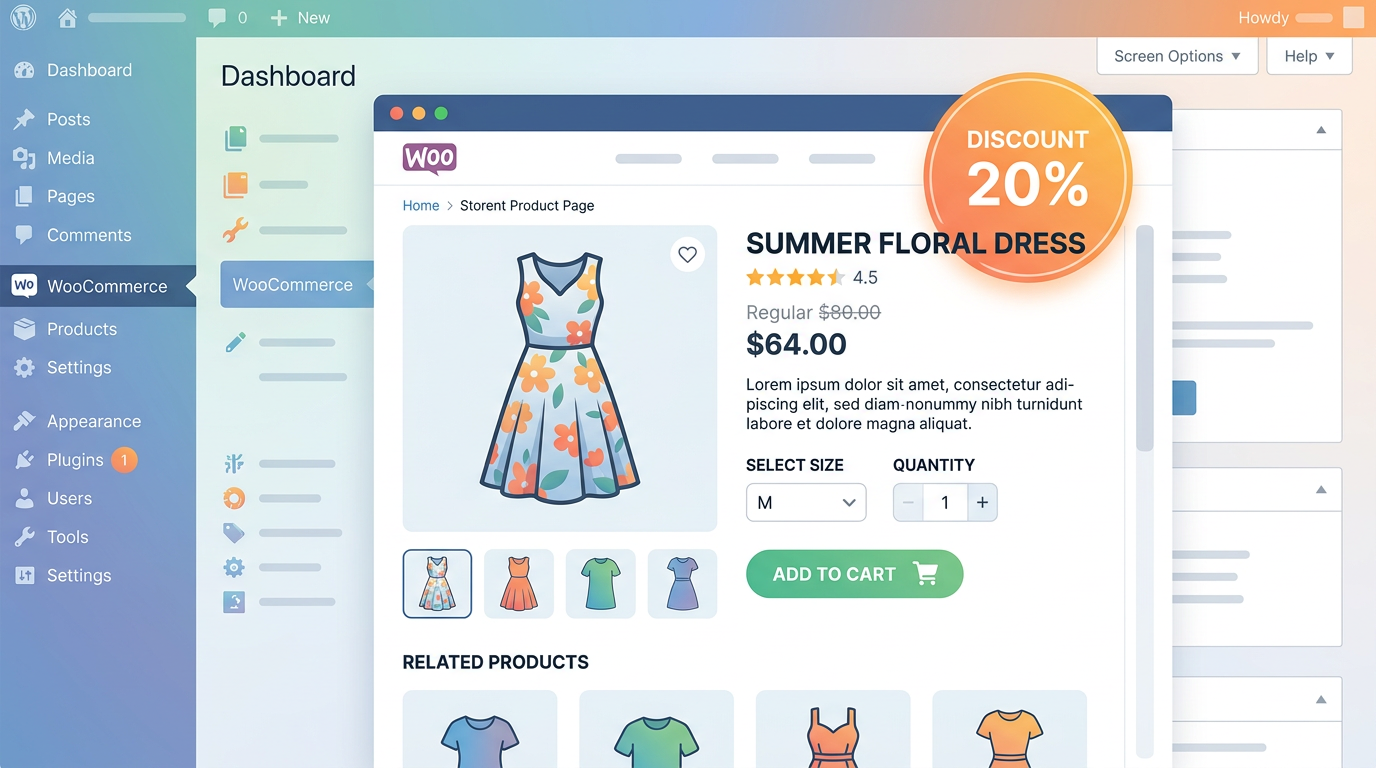
- Display Badge: Enable the "Show discount badge on product page" option to display a "20% Off" label on qualifying items. This increases conversion rates by making the promotion visible before checkout.
Save the rule and test it by adding products from the category to the cart. Verify that the discount applies correctly, that excluded items are ignored, and that the total matches your expectation.
Troubleshooting Common Category Discount Issues
Even with a dedicated rule engine, category discounts can behave unexpectedly if you do not account for how WooCommerce calculates totals. Here are the most common problems and how to fix them.
Discount Not Applying to Variations
WooCommerce treats variable products as a single product with multiple variations. If you apply a category discount to the parent product, the discount applies to all variations. However, if you set a sale price on a specific variation, the sale price takes precedence over the category discount. To fix this, either remove the variation sale price or set the category discount to apply only to products without a sale price.
Shipping Discount Eating Margin
If your category discount applies to the cart subtotal including shipping, you will lose money on every order. To prevent this, ensure the "Apply to cart subtotal only" toggle is enabled in your rule settings. This forces WooCommerce to calculate the discount on product prices before shipping is added.
Coupon Conflict with Minimum Spend
If you have a store-wide coupon that requires a $50 minimum spend, and a category discount that reduces the subtotal to $45, the store-wide coupon will not apply. To resolve this, either increase the minimum spend threshold, reduce the category discount percentage, or set the category discount to apply after the store-wide coupon by adjusting the priority.
Tips to Boost Revenue With Category Discount Rules
Category discounts are not just about reducing prices. They are a strategic tool for increasing average order value, clearing slow-moving inventory, and encouraging repeat purchases.
Use Tiered Discounts to Encourage Higher Quantities
Set up a woocommerce bulk discount rule that increases the percentage as the customer adds more items from the category. For example:
- 1-2 items: 10% off
- 3-5 items: 15% off
- 6+ items: 20% off
This incentivizes customers to add more items to reach the next tier, increasing your average order value without requiring manual coupon entry.
Combine Category Discounts With Quantity Limits
If you run a category discount on high-demand items, you may want to limit how many units a single customer can purchase at the discounted price. Use a plugin like Min & Max Quantities for WooCommerce to set a maximum quantity per product or category. This prevents resellers from buying your entire inventory at the discounted rate and ensures fair distribution among your customers.
Test Rules Before Launching
Always test your category discount rules in a staging environment before applying them to your live store. Create test orders with different combinations of products, coupons, and shipping methods to verify that the math works correctly. Check the order totals, tax calculations, and shipping costs to ensure nothing is broken.
How to Set Up Categories in WooCommerce
Category discounts rely on a clean category structure. If your products are not assigned to the correct categories, the discount rules will not apply. Here is how to set up categories in WooCommerce:
- Go to Products > Categories in your WordPress admin.
- Enter a name, slug, and description for the category.
- Assign a parent category if you want to create a hierarchy.
- Click Add New Category.
- Edit your products and assign them to the appropriate categories under the Product Categories meta box.
You can also use bulk actions to assign multiple products to a category at once. Select the products, choose Edit from the bulk actions dropdown, select the category, and click Update.
Conclusion
A well-structured woocommerce category discount drives volume without breaking your cart math or eroding margins. By attaching the promotion to the category taxonomy, setting clear priority rules, and excluding thin-margin items, you create a predictable discount engine that scales with your catalog. Use a dedicated rule manager like Dreamfox Category Price Manager for WooCommerce to handle the edge cases native coupons cannot, and you will run category sales with confidence.
FAQ
- How to make a discount code on WooCommerce?
- Go to Marketing > Coupons > Add Coupon, enter a code, set the discount type to percentage or fixed amount, and under Usage Restriction choose Apply to categories to limit the code to specific product groups. Save the coupon and test it in the cart to verify the math matches your expectation before publishing.
- How do I create a discount rule for WooCommerce?
- Install a category discount plugin, navigate to its rule builder, select the target categories, choose a discount type such as percentage or fixed cart, set quantity thresholds, and configure exclusions for sale items or specific products. Save the rule and assign it a priority so it calculates before or after store-wide coupons without breaking totals.
- How to set up categories in WooCommerce?
- Go to Products > Categories, click Add New Category, fill in the name and slug, optionally assign a parent category, and click Add New Category. Then edit your products and assign them to the correct categories using the Product Categories meta box or bulk edit actions.
- How to give a discount on products?
- You can apply a discount directly to individual products by editing the product and entering a sale price, or you can apply a category-wide discount using a rule engine that targets the product category. Category rules are faster for large catalogs and automatically apply to new items added to the category.
- Can I combine a category discount with a store-wide coupon?
- Yes, but you must set the calculation priority carefully so the discounts do not double-dip and push your margin negative. Use a dedicated category discount plugin that lets you assign rule priority, exclude specific products, and ensure the discount applies only to product subtotals before shipping and tax.
- How do I prevent a category discount from applying to shipping?
- Enable the Apply to cart subtotal only toggle in your category discount rule settings. This forces WooCommerce to calculate the discount percentage on product prices before shipping costs are added, protecting your margin on every order.
- Why is my category discount not showing on variable products?
- Variable products inherit the category discount from the parent product, but if a specific variation has a sale price set, that sale price overrides the category discount. Remove the variation sale price or configure the rule to apply only to products without an existing sale price.
This article is part of our WooCommerce pricing topic hub, where the related plugins and guides live together.