Master WooCommerce Checkout Fields: Add, Remove & Validate
Learn to manage WooCommerce checkout fields safely. Improve conversion with a WooCommerce checkout plugin, editor, and block validation tips.
You just launched a new product line that requires a specific gift message, so you rush to add a text area to the checkout page. Two hours later, orders are flooding in, but none of the messages are saving to the order meta data. Worse, a validation rule you copied from a StackOverflow thread is throwing a fatal error for international customers because the postcode format doesn't match your local settings. This is the exact moment store owners realize that managing WooCommerce checkout fields is not just about changing labels; it is about data integrity, user experience, and protecting your revenue stream.
Whether you are a developer writing custom hooks or a store owner using a visual interface, the checkout page is the most sensitive real estate in your WordPress installation. One misplaced filter can break the cart, and a missing validation check can result in incomplete orders that require manual intervention. This guide walks you through the technical reality of adding, removing, and validating fields, ensuring your WooCommerce checkout plugin setup actually improves conversion rather than hindering it.
The High Cost of Checkout Friction and Field Bloat
The default WooCommerce checkout page asks for a standard set of information: name, address, email, and payment details. While this covers 90% of physical goods, it falls short for service businesses, subscription models, or stores selling customized items. However, the instinct to "add everything just in case" is the fastest way to kill your conversion rate. Every additional field increases cognitive load and form abandonment.
1. Improvements to user flow and checkout efficiency
Streamlining the checkout process starts with ruthless subtraction. If you do not need a customer's fax number or a secondary phone line, remove it. The default WooCommerce settings include fields that many modern stores never use. By stripping away unnecessary inputs, you reduce the time to purchase.
For example, if you sell digital downloads, the shipping address is redundant. Leaving it visible forces users to fill out fields that do not impact their order, leading to frustration. You should configure your store to only request the billing email and payment method. This requires precise configuration, often handled by a woocommerce checkout field editor to toggle visibility based on product type without touching core code.
2. Improve checkout page appearance and trust
A cluttered checkout page looks unprofessional and raises security concerns. When users see a wall of text inputs, they question whether the site is legitimate. A clean, minimal layout signals efficiency. Customizing the layout—such as moving the order notes to a collapsible accordion or grouping billing and shipping details logically—improves the visual hierarchy.

3. Meet specific business or legal requirements
Sometimes, extra fields are mandatory. GDPR compliance might require a specific checkbox for marketing consent. A bakery might need a "Allergy Information" text box. In these cases, the field is not just an input; it is a legal shield. You must ensure these fields are validated correctly so that the required data is captured every single time, preventing compliance violations later.
How to Add, Remove, and Edit Fields Safely
There are two primary ways to manipulate checkout fields: using code snippets (filters) or using a dedicated plugin. For most store owners, a plugin offers a safer, more maintainable path, but understanding the underlying mechanics is crucial for debugging.
The Code Approach: Using `woocommerce_checkout_fields`
WooCommerce provides a filter hook called `woocommerce_checkout_fields` that allows developers to modify the array of fields before they are rendered. This is the standard method for customizing the checkout without a plugin.
Removing a Field via Code: To remove the company name field from the billing section, you would add the following to your theme's `functions.php` file:
```php add_filter( 'woocommerce_checkout_fields', 'remove_company_field' ); function remove_company_field( $fields ) { unset( $fields['billing']['billing_company'] ); return $fields; } ```
Adding a Custom Field via Code: To add a new field, you append to the array. Here is how you add a "Gift Message" field:
```php add_filter( 'woocommerce_checkout_fields', 'add_gift_message_field' ); function add_gift_message_field( $fields ) { $fields['billing']['billing_gift_message'] = array( 'type' => 'textarea', 'label' => __('Gift Message', 'woocommerce'), 'required' => false, 'class' => array('form-row-wide'), 'priority' => 90, ); return $fields; } ```
The Danger Zone: While code snippets are powerful, they are fragile. If you update your theme and the `functions.php` file is overwritten, your customizations vanish. Furthermore, if you have multiple snippets fighting over the same filter hook with different priorities, fields can disappear or duplicate unexpectedly. This is why many agencies prefer a woocommerce checkout field editor plugin that stores settings in the database and provides a UI for priority management.
The Plugin Approach: Visual Management
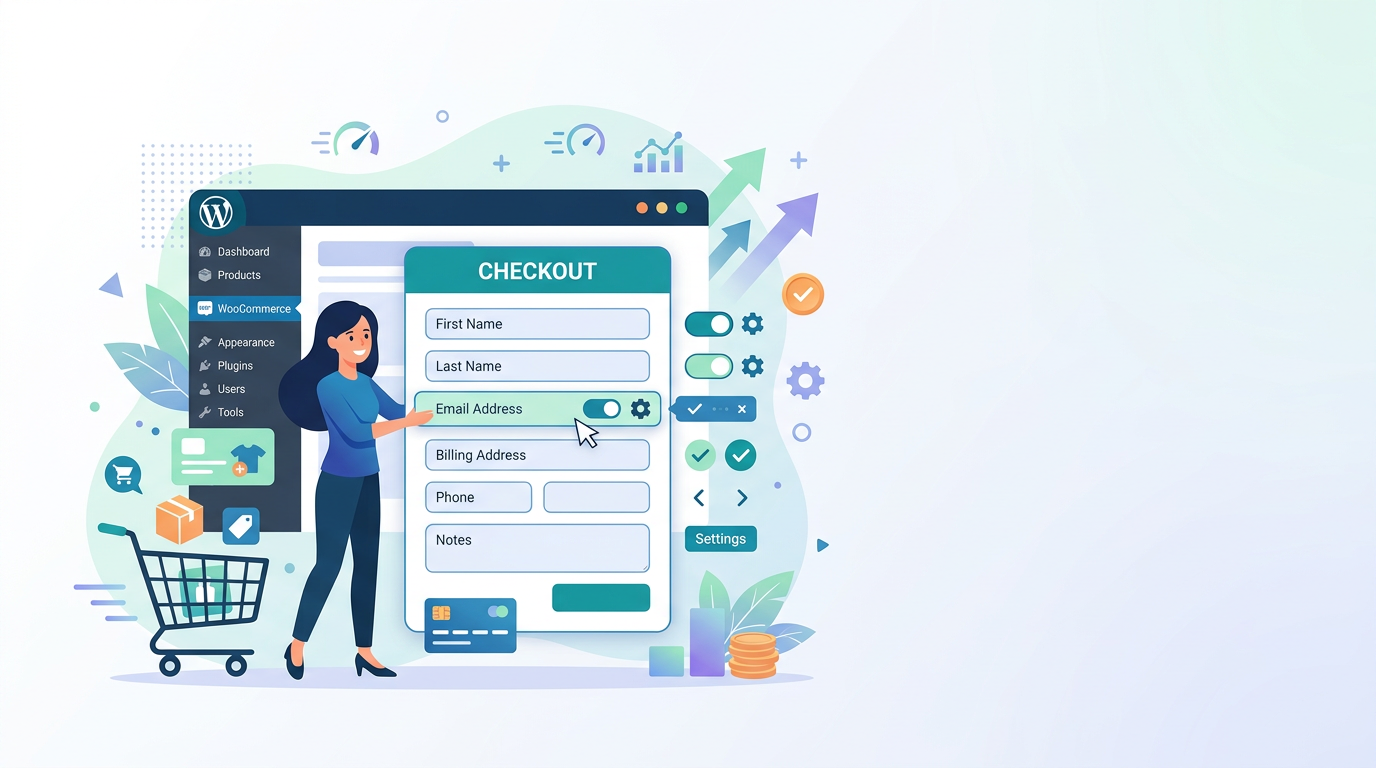
Using a tool like the Dreamfoxmedia Checkout Logic Builder for WooCommerce allows you to add, remove, and reorder fields via a drag-and-drop interface. This approach eliminates the risk of syntax errors in your `functions.php` file. You can set conditional logic (e.g., "Show Gift Message only if Product Category = Toys") and manage field validation rules without writing a single line of PHP. This is significantly faster for agencies managing multiple client sites.
Validation: The Secret to Data Integrity
Adding a field is easy; ensuring the data entered is usable is hard. If you add a "Phone Number" field, you must validate it. If a user enters "Call me later," your SMS integration will fail. Validation ensures that the data entering your database matches the format your business processes require.
Implementing Validation Logic
WooCommerce provides the `woocommerce_after_checkout_validation` action hook. You can hook into this to check field values and return an error notice if they fail your criteria.
Worked Example: Phone Number Validation Suppose you added a custom mobile number field and need to ensure it contains only digits and is at least 10 characters long.
```php add_action( 'woocommerce_after_checkout_validation', 'validate_custom_mobile_field', 10, 2 ); function validate_custom_mobile_field( $posted_data, $errors ) { $mobile = $posted_data['billing_mobile_number']; // Check if field exists and is not empty if ( ! empty( $mobile ) ) { // Remove non-numeric characters for checking length $clean_mobile = preg_replace( '/[^0-9]/', '', $mobile ); if ( strlen( $clean_mobile ) < 10 ) { $errors->add( 'validation', __( 'Please enter a valid mobile number (at least 10 digits).' ) ); } } } ```
If you skip this step, you risk collecting garbage data. Imagine trying to call a customer for order confirmation and finding their number listed as "N/A" or "Unknown" because there was no validation rule enforcing a format. A robust woocommerce checkout plugin will often include built-in validation presets for common data types like emails, URLs, and phone numbers, saving you from writing custom regex patterns.
Navigating the Block Editor Era
The landscape of WooCommerce is shifting towards Full Site Editing (FSE). The classic shortcode-based checkout `[woocommerce_checkout]` is being replaced by the Checkout Block. This changes how fields are rendered and styled.
Adapting to the WooCommerce Checkout Block
The woocommerce checkout block renders fields differently than the legacy shortcode. It uses React components under the hood. If you are using a block theme (like Twenty Twenty-Four or Storefront's block version), your old CSS selectors might stop working, and your custom fields might not appear in the expected order.
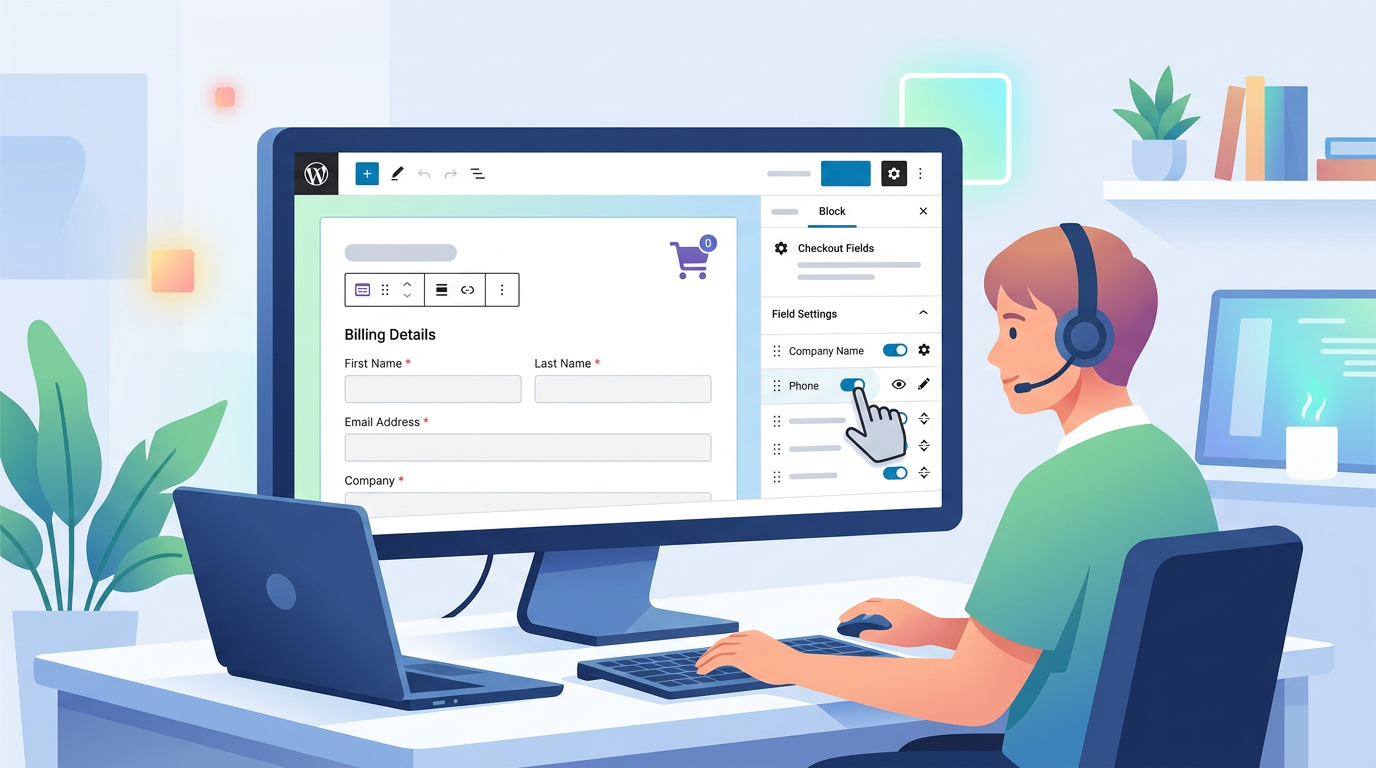
When using the block editor, you must ensure that any custom fields you add are registered correctly so the block can detect them. The block editor also introduces new UX patterns, such as inline validation (showing an error immediately as the user types) rather than waiting for the "Place Order" button click. Your validation logic must remain compatible with both the classic and block rendering methods to ensure a consistent experience across all devices.
Speeding Up Checkout Performance
Every script and style sheet loaded on the checkout page adds latency. If you are loading heavy third-party scripts for fields that the user never interacts with, you are increasing the Time to Interactive (TTI). A slow checkout page directly correlates with higher abandonment rates.
Optimizing Field Loading
To improve speed, defer non-critical scripts. If you have a field that only appears when a user selects "Ship to a different address," do not load the associated JavaScript until that checkbox is clicked. Lazy loading field logic reduces the initial payload.
Additionally, minimize database queries. If you have a custom field that queries the database to populate a dropdown (e.g., "Select your nearest store"), ensure you are using caching. A live query on every page load will bog down your server during traffic spikes. Using a dedicated woocommerce checkout field editor often includes performance optimizations, such as minifying the output CSS and deferring non-essential scripts, which helps maintain a high PageSpeed score.
Comparison: Code Snippets vs. Plugin Management
When deciding how to manage your checkout fields, you must weigh flexibility against maintainability. The table below compares the two dominant approaches.
| Feature | Code Snippets (functions.php) | Checkout Field Plugin |
|---|---|---|
| Learning Curve | High (Requires PHP/JS knowledge) | Low (Visual UI, drag-and-drop) |
| Risk of Errors | High (Syntax errors can break site) | Low (Sandboxed settings) |
| Maintenance | Manual updates per site | Centralized, often auto-updates |
| Conditional Logic | Complex to code manually | Built-in visual rule builders |
| Validation | Requires custom regex coding | Pre-built validators available |
| Best For | Simple, one-off changes | Complex stores, agencies, scaling |
Conclusion
Managing checkout fields is a balancing act between gathering necessary data and maintaining a frictionless user experience. Whether you choose to write custom PHP filters or utilize a visual woocommerce checkout plugin, the goal remains the same: capture accurate data without frustrating the buyer. Validate your inputs rigorously, remove every field that isn't absolutely critical, and ensure your setup works seamlessly within the modern block editor. For a robust, code-free solution to these challenges, explore the Dreamfoxmedia Checkout Logic Builder for WooCommerce to take full control of your checkout flow today.
FAQ
- how to remove fields from woocommerce checkout?
- You can remove fields by using the `woocommerce_checkout_fields` filter in your theme's functions.php file with the `unset()` function, or by using a checkout field editor plugin to toggle fields off via a visual interface.
- how to add custom fields in woocommerce checkout block?
- To add fields to the checkout block, you must register the field using standard WooCommerce hooks so the block renderer can detect it, then use the block editor's field management panel to drag and drop the new field into your desired layout position.
- how to remove checkout fields in woocommerce?
- The most reliable method is to hook into `woocommerce_checkout_fields` and unset the specific array key (e.g., `$fields['billing']['billing_company']`), ensuring you return the modified fields array to prevent errors.
- how to add fields to woocommerce checkout?
- You can add fields by appending a new array to the checkout fields filter with parameters for type, label, and priority, or by using a plugin that provides a UI to create text, textarea, select, and checkbox inputs without coding.
- how to edit woocommerce checkout fields?
- Editing fields involves modifying their properties (like label, placeholder, or required status) via the `woocommerce_checkout_fields` filter array, or by using a field editor tool to change these attributes directly in the WordPress admin dashboard.
This article is part of our WooCommerce checkout topic hub, where the related plugins and guides live together.