Add a Freemius Buy Button With a Shortcode
Sell plugins and themes from any WordPress page with the Freemius Checkout overlay. Shortcode parameters, an example and fixes.
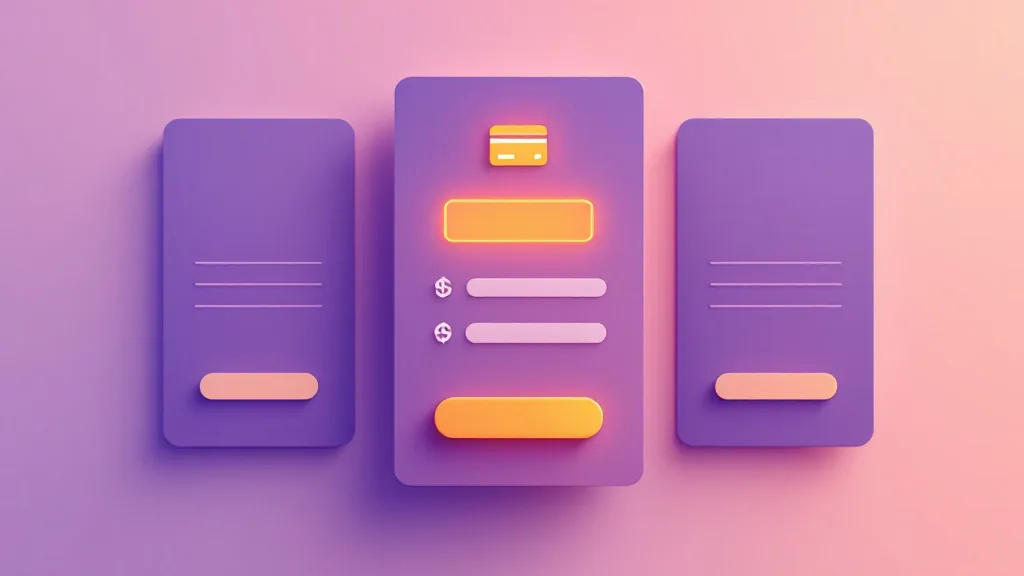
You built a WordPress plugin, set it up in Freemius, and now you need a Buy Now button on your own pricing page or documentation. You can link to the Freemius-hosted checkout, or you can open the Freemius Checkout overlay on your own page so visitors never leave it. This guide shows the second route with a single shortcode.
What the Freemius Checkout overlay does
Freemius Checkout is a popup that handles the purchase for plugin and theme licences, one-time payments and subscriptions. Your page loads a small script, the visitor clicks a button and the popup opens on top of your page. Freemius processes the transaction, so you do not build a payment flow.
To use it you need a Freemius developer account and a product configured in the Freemius Developer Dashboard. The plugin below only places the button and loads the checkout, it does not replace Freemius.
What you need from the Freemius dashboard
Copy these values for the product and plan you want to sell:
- plugin ID, the Freemius product ID
- plan ID of the subscription or pricing plan
- pricing ID of the specific pricing tier
- public key of the product
Your public key is meant to be used on the front end, but still copy it carefully, because a wrong ID shows up as a button that does not work.
Add the shortcode
Install Dreamfox Checkout for Freemius, then add the shortcode to any page or post. Both `[checkout-for-freemius]` and `[freemius_checkout]` work.
``` [checkout-for-freemius name="My Plugin" plugin_id="1234" plan_id="5678" pricing_id="9012" public_key="pk_your_public_key" button="Buy Now"] ```
The parameters:
- `name`: the product name shown in checkout
- `plugin_id`: your Freemius product ID
- `plan_id`: the subscription or pricing plan ID
- `pricing_id`: the specific pricing tier ID
- `public_key`: your Freemius public key
- `image`: URL of the product logo for the popup
- `button`: the button label (default: Buy Now)
- `button_id`: the HTML ID of the button (default: purchase)
- `button_class`: your own CSS classes for styling
Several buttons on one pricing page
A pricing table often has a button per plan. You can place several shortcodes on one page, one for each plan. Give every button its own `button_id`, otherwise they share the default ID and only one reacts correctly. Use `button_class` to match the button to your theme.
Performance and loading
The checkout assets load only on pages that contain the shortcode, and the plugin has no jQuery dependency. Your other pages stay unchanged.
The button does nothing: what to check
- The shortcode must contain both `plugin_id` and `public_key`.
- Check that the Freemius IDs belong to the same product, and that the plan and pricing IDs match that product.
- Give each button on the page a unique `button_id`.
- Remember that the checkout script is loaded only where the shortcode is, for example not from a template that is rendered without it.
- Clear page caching after you change the shortcode.
Does it need WooCommerce?
No. The plugin works on its own with Freemius Checkout. The WooCommerce compatibility notice only matters if you run a WooCommerce store next to your Freemius products.
What data goes where
Checkout data goes to Freemius: the product ID, plan ID, pricing ID, public key and whatever the customer enters during checkout. Mention Freemius in your privacy policy, because the purchase runs on their service.
Related reading
If your Freemius products are WooCommerce plugins, see how we explain them on the product pages, for example payment gateway per product, and compare the best WooCommerce plugins. Documentation for our own plugins is in the knowledge base.
FAQ
- Do I need a Freemius account to use the plugin?
- Yes. You need a Freemius developer account and a product set up in the Freemius Developer Dashboard before the buy button can process purchases.
- Does Checkout for Freemius require WooCommerce?
- No. It works independently with Freemius Checkout. WooCommerce compatibility is only relevant if you also run a WooCommerce store.
- Why is my Freemius buy button not working?
- Make sure the shortcode has both plugin_id and public_key. The checkout script loads only on pages with the shortcode, and with several buttons on one page each needs a unique button_id.
- Can I put more than one buy button on a page?
- Yes. Add one shortcode per button and give each a unique button_id.
- Where is checkout data sent?
- To Freemius, including the product ID, plan ID, pricing ID, public key and the information the customer enters during checkout.