WooCommerce Delivery Date: How to Add It Right
Add a woocommerce delivery date to checkout with timeslots. Compare free tools, avoid nulled risks, and configure slots for smooth local deliveries.
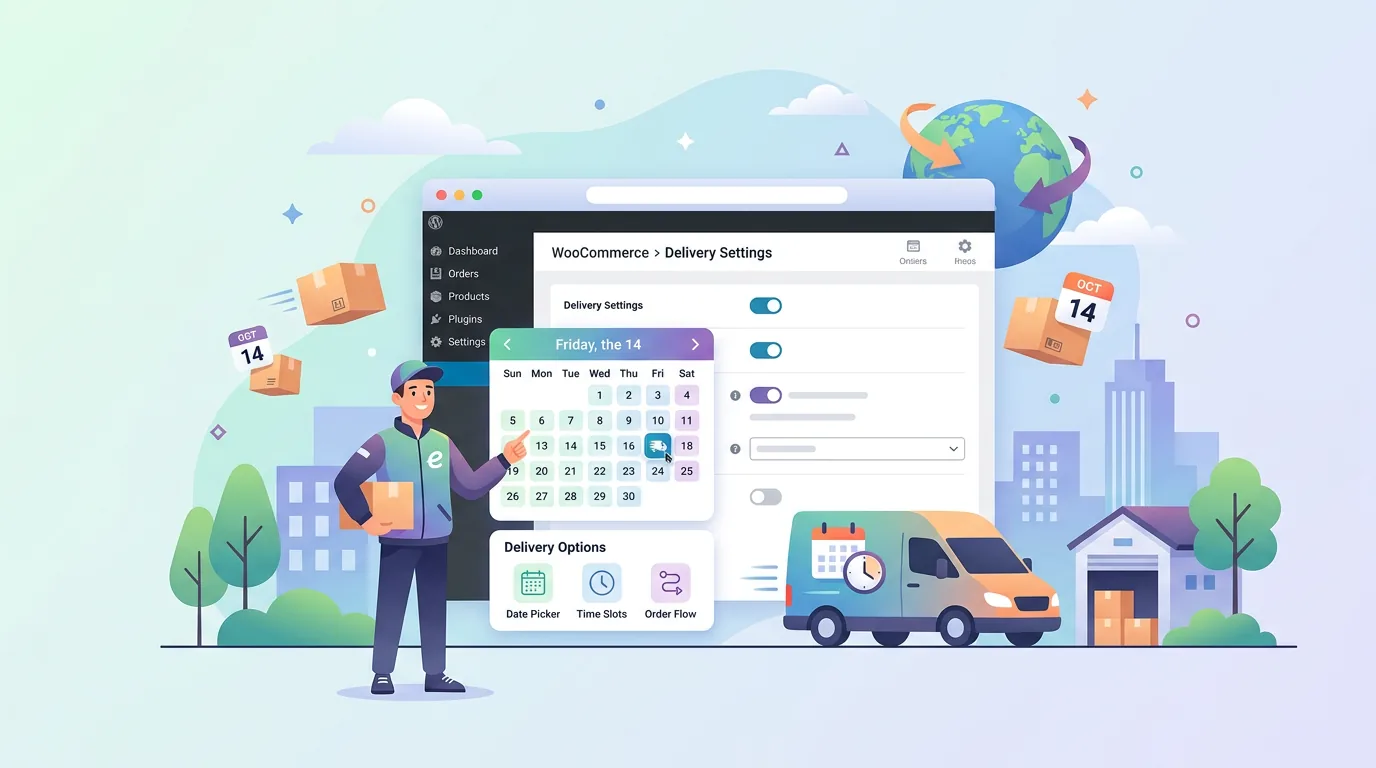
A customer in your city adds perishable goods to the cart, but you only deliver on Tuesdays and Fridays. Without a way to capture a specific date and timeslot, the order ships the next day, arrives when no one is home, and you absorb the return cost. Adding a woocommerce delivery date to your checkout prevents this mismatch by forcing a calendar choice before payment. When configured correctly, the calendar respects your business hours, blocks holidays, and assigns slots to shipping methods so you never oversell capacity.
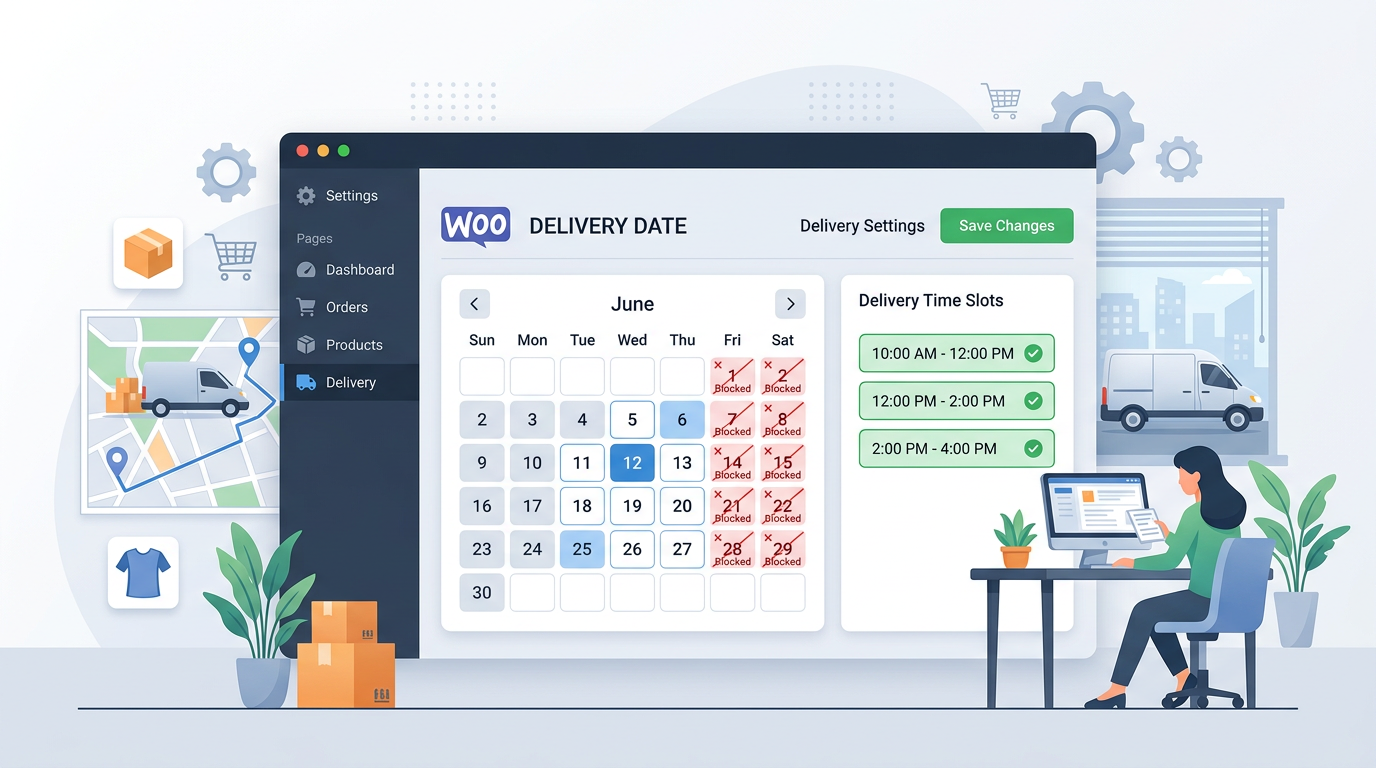
Why Offer Delivery Date in WooCommerce?
A delivery date picker is not a cosmetic add-on. It directly reduces failed deliveries, cuts customer support tickets, and aligns order volume with your fulfillment capacity. Stores that operate within a defined radius or rely on in-house drivers benefit most because they can cap slots per day and per time window.
Delivery Date Picker for Small or Regional WooCommerce Stores
Small bakeries, florists, and grocery stores often struggle with same-day or next-day logistics. When customers can pick a date and a 2-hour window, you can batch orders by zone, assign drivers efficiently, and avoid peak-hour bottlenecks. Regional stores also benefit from holiday blocks. If you close every Monday, the calendar should hide Monday dates automatically. Without this, you receive orders you cannot fulfill, issue refunds, and damage your reputation.
Order Delivery Date Pro for WooCommerce Nulled: Why It Fails
Some store owners search for an order delivery date pro for woocommerce nulled to avoid licensing fees. Nulled plugins carry hidden code that can inject backdoors, steal customer data, or break after a WooCommerce update. Because they do not receive security patches, a single WordPress core update can render your checkout unusable. The cost of cleaning a compromised site far exceeds the price of a legitimate license. Stick to vetted sources, verify file hashes, and maintain nightly backups before installing any third-party extension.
How to Add Delivery Date in WooCommerce?
The process involves installing a reliable extension, enabling the date and timeslot fields, linking them to your shipping methods, and configuring the calendar rules. Below is a practical path that avoids common pitfalls.
Plugin to Add Delivery Date in WooCommerce
Choose a plugin that supports both date and timeslot selection, integrates with your existing shipping zones, and allows per-method configuration. A solid option is Delivery Date & Timeslot for WooCommerce, which exposes settings under WooCommerce > Delivery Date. Verify compatibility with your theme, especially if you use a custom checkout builder. Test the flow in a staging environment before pushing to production.
Enable WooCommerce Delivery Date Picker
Navigate to WooCommerce > Delivery Date and toggle the date picker on. Set the position to display before or after the shipping method section, depending on your checkout layout. Enable the timeslot option if your fulfillment model requires time windows. Set the minimum order lead time to at least one day to prevent same-day chaos unless you have a dedicated rush team. Save and refresh the checkout page to confirm the calendar appears.
Configure WooCommerce Delivery Date Picker's Calendar
Calendar rules dictate which dates are available. Define your working days by selecting Monday through Saturday, for example, and exclude Sunday. Add holiday dates manually or import a CSV if the plugin supports it. Set the maximum days ahead a customer can book; ten days is typical for local deliveries. Configure slot capacity per day and per time window. If you can handle 25 orders between 9 AM and 11 AM, set the slot limit to 25 and enable auto-close when full. This prevents overbooking and eliminates manual order rejections.
Add Shipping Method with Delivery Date Picker
Delivery dates should only appear for shipping methods that support them. Go to WooCommerce > Settings > Shipping > Shipping Zones. Edit your local zone and add a flat rate or local delivery method. Open the method settings and look for the delivery date toggle. Enable it for that method only. If you also offer national shipping via a third-party carrier, leave the date picker disabled for that method to avoid confusing customers who expect standard transit times.
Enable Delivery Picker for Your WooCommerce Shipping Method
After linking the picker to a method, test the checkout flow. Select the local delivery method and verify that the calendar and timeslot fields appear. Switch to a national method and confirm the fields disappear. This conditional behavior is critical. If the fields persist across all methods, customers may pick a local date for a cross-country shipment, creating fulfillment errors. Adjust the method-level toggles until the behavior matches your logistics model.
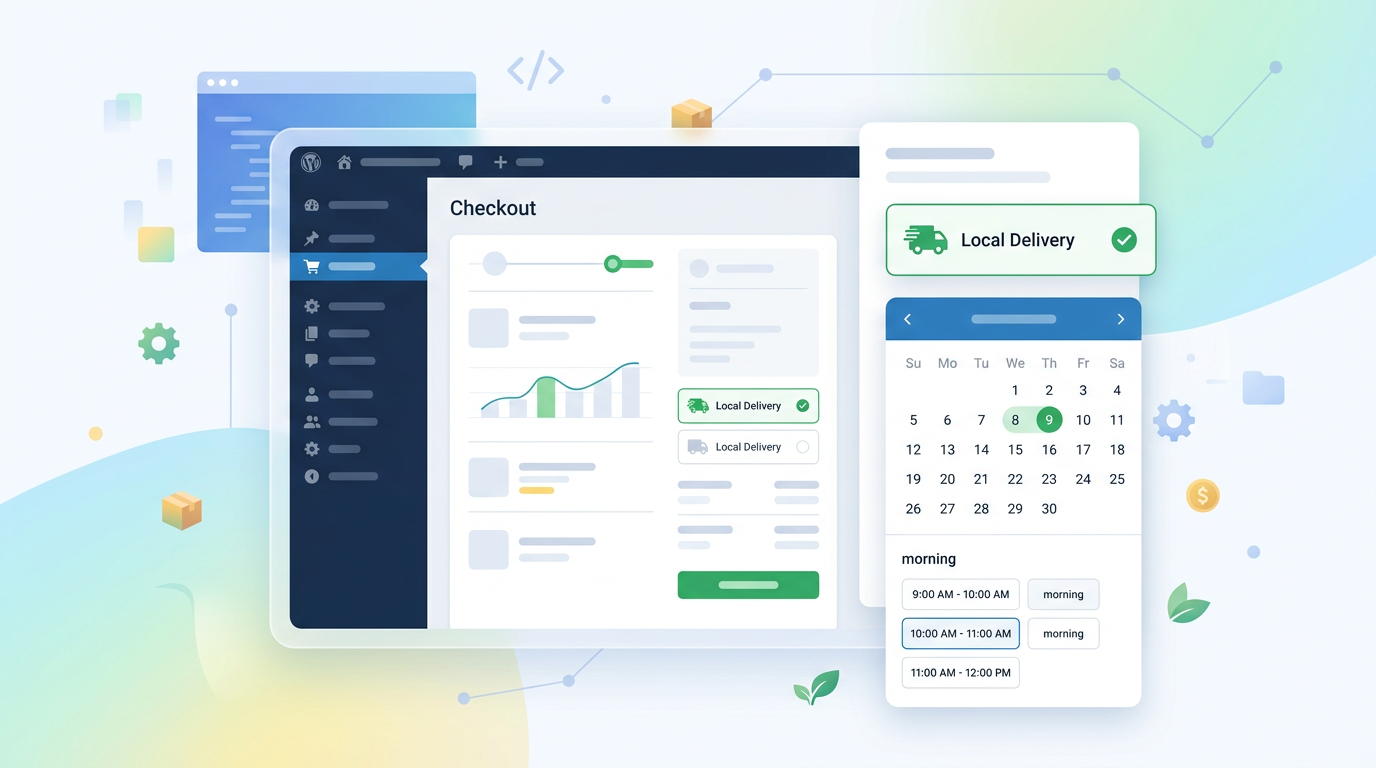
Display Delivery Date – Result
Once configured, the selected date and timeslot appear on the order confirmation email, the thank-you page, and the admin order screen. Verify that the meta data is stored correctly by placing a test order and checking WooCommerce > Orders > the specific order. The delivery date should be visible in the order details and included in the email template. If it is missing, check the email template settings in your plugin and ensure the placeholder variable is mapped correctly.
Set Shipping Cost Based on Delivery Date
Dynamic shipping costs can reflect demand. If you charge extra for weekends or same-day windows, configure surcharges in the delivery plugin settings. For example, add a $5 fee for Saturday slots and a $10 fee for 10 AM–12 PM windows. The plugin should calculate the surcharge at checkout and add it to the shipping line item. Test multiple scenarios: a weekday morning slot, a weekend afternoon slot, and a slot at capacity to confirm pricing logic holds.
Holiday Calendars
Holiday blocks prevent orders on days you cannot deliver. Maintain a holiday list in the plugin settings and update it quarterly. If you close for a public holiday, add the date and set the status to unavailable. Some plugins allow recurring rules, such as blocking the first Monday of every month. Use this for maintenance days or staff training. Without accurate holiday calendars, you risk accepting orders that cannot be fulfilled, triggering refunds and negative reviews.
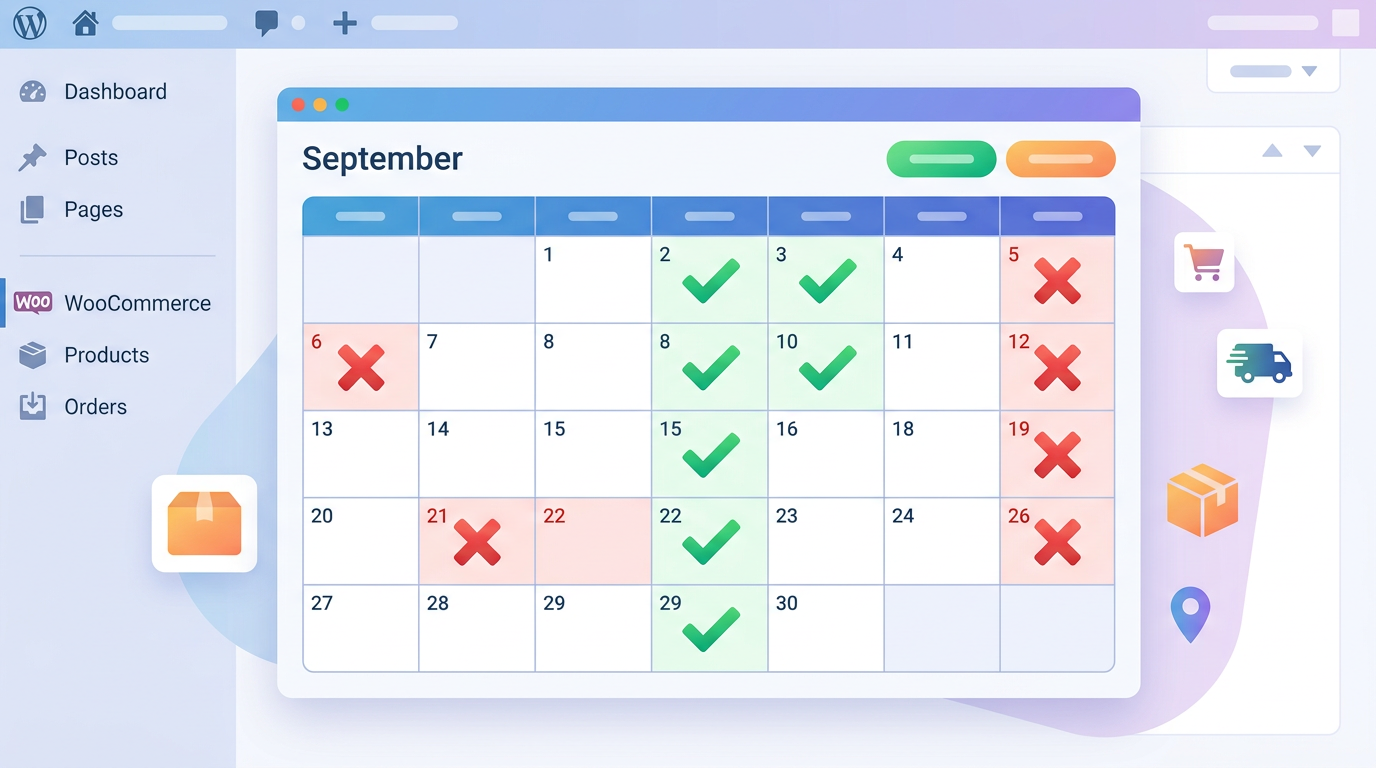
Professional Managing of Delivery Dates and Costs
Scaling delivery operations requires more than a calendar. You need capacity limits, slot analytics, and integration with your dispatch workflow. Track slot utilization weekly. If Monday mornings consistently hit 90% capacity, consider opening an additional window or adjusting pricing to shift demand. Export order data to a spreadsheet or connect to a delivery management tool to automate driver assignments. Store owners who treat delivery slots as a finite resource outperform those who treat them as an afterthought.
Check Out Our Case Studies
Real stores have reduced failed deliveries by 30% after implementing strict slot limits and holiday blocks. A regional grocery chain added timeslot capacity caps and saw a 20% drop in customer support tickets within two months. These results come from disciplined configuration, not guesswork. Review your fulfillment capacity, set realistic limits, and adjust based on data.
Let Customers Choose Their Delivery Date
Empowering customers to pick dates reduces friction. However, you must guide them toward available windows. Show only open slots, hide full ones, and display a clear message when a date is unavailable. Avoid showing past dates or dates beyond your lead time. A clean calendar improves conversion and reduces checkout abandonment.
Manage Your Delivery Schedule
Your internal schedule should mirror the checkout calendar. If you block a date for maintenance, ensure your team knows. Use the order list to filter by delivery date and prepare batches. Print manifests sorted by timeslot to streamline loading. Consistency between what customers see and what your team executes prevents missed deliveries.
Offer Delivery Time Slots
Timeslots add precision. Define windows that match your driver capacity. Two-hour slots are standard, but you can customize them to 90 minutes if your routes are dense. Set a maximum number of orders per slot and enable automatic closure when reached. This prevents overcommitment and keeps delivery windows realistic.
Manage Deliveries from WooCommerce
The admin order screen should display the selected date and timeslot prominently. Use bulk actions to update statuses, print labels, and export delivery manifests. If your plugin supports status workflows, set orders to processing when a slot is confirmed and to completed when delivered. This keeps your pipeline clean and makes reporting accurate.
External Services
If you use a third-party dispatch or routing service, ensure the delivery date and timeslot data is passed via webhooks or API. Some services require specific date formats or timezone handling. Test the integration with a sandbox order and verify that the external tool receives the correct slot data. Misaligned timezones are a common failure point; set your WordPress timezone to UTC and let the plugin handle local conversions.
Comparison: Free vs Paid Delivery Plugins
| Feature | Free Options | Paid Extensions |
|---|---|---|
| Timeslot selection | Limited or none | Full control with capacity limits |
| Holiday calendar | Manual only | Import, recurring rules, timezone aware |
| Shipping method linking | Global toggle | Per-method enable/disable |
| Surcharges by date/slot | Not supported | Dynamic fees for weekends or peak windows |
| Support and updates | Community forums | Dedicated support, security patches |
| Risk of nulled versions | High if sourced improperly | Low when purchased from official sources |
Free tools can work for basic date selection, but they lack the controls needed for reliable fulfillment. Paid extensions provide the granularity required to match your operational capacity and avoid overbooking.
Conclusion
Adding a woocommerce delivery date with timeslot selection reduces failed deliveries, aligns order volume with your capacity, and improves the checkout experience. Configure calendar rules, link the picker to the correct shipping methods, set slot limits, and monitor utilization weekly. For a tested setup that handles dates, timeslots, and method-level controls, try Delivery Date & Timeslot for WooCommerce and ship with confidence.
FAQ
- How to see estimated delivery date?
- The estimated delivery date appears on the order confirmation email, the thank-you page, and the WooCommerce admin order details. Verify that the delivery plugin is configured to save the selected date as order meta and that the email template includes the corresponding placeholder.
- How can I track my WooCommerce order's delivery?
- Track deliveries by filtering orders by the selected delivery date in WooCommerce > Orders, then use bulk actions to update statuses or export manifests. If you use a third-party dispatch tool, ensure the plugin passes the date and timeslot via webhook so the external system can assign drivers and send tracking updates.
- What is a delivery date?
- A delivery date is the specific day a customer selects at checkout for when they want their order to arrive. It replaces generic transit estimates with a concrete commitment, allowing you to plan fulfillment capacity and reduce missed deliveries.
- What are the disadvantages of WooCommerce?
- WooCommerce requires ongoing maintenance, hosting optimization, and careful plugin selection to avoid conflicts. Extensions for advanced features like delivery slots add cost, and misconfigured settings can break checkout flows if not tested in staging first.
- how to add delivery date in woocommerce?
- Install a delivery plugin, enable the date and timeslot fields, and link them to the shipping methods that support local fulfillment. Configure working days, holidays, lead times, and slot capacity, then test the checkout flow to confirm the calendar appears only for the correct methods.
This article is part of our WooCommerce delivery dates topic hub, where the related plugins and guides live together.