Fix WordPress Core Web Vitals: Red to Green Guide
Fix WordPress core web vitals from red to green using precise cache rules and script deferral. Run a wordpress speed test to eliminate cls web vitals issues

Your product gallery loads halfway, then snaps upward as the featured image renders, pushing the Add to Cart button out of view. Shoppers click the wrong element, bounce, and your conversion rate tanks. Tuning wordpress core web vitals isn't about chasing vanity scores; it's about locking in predictable rendering so checkout flows stay intact. A properly configured wordpress cache layer combined with precise asset ordering eliminates these jumps before they reach the browser.
What Are Google’s Core Web Vitals, and Why Do They Matter for WooCommerce?
Understanding the Three Core Web Vitals Metrics
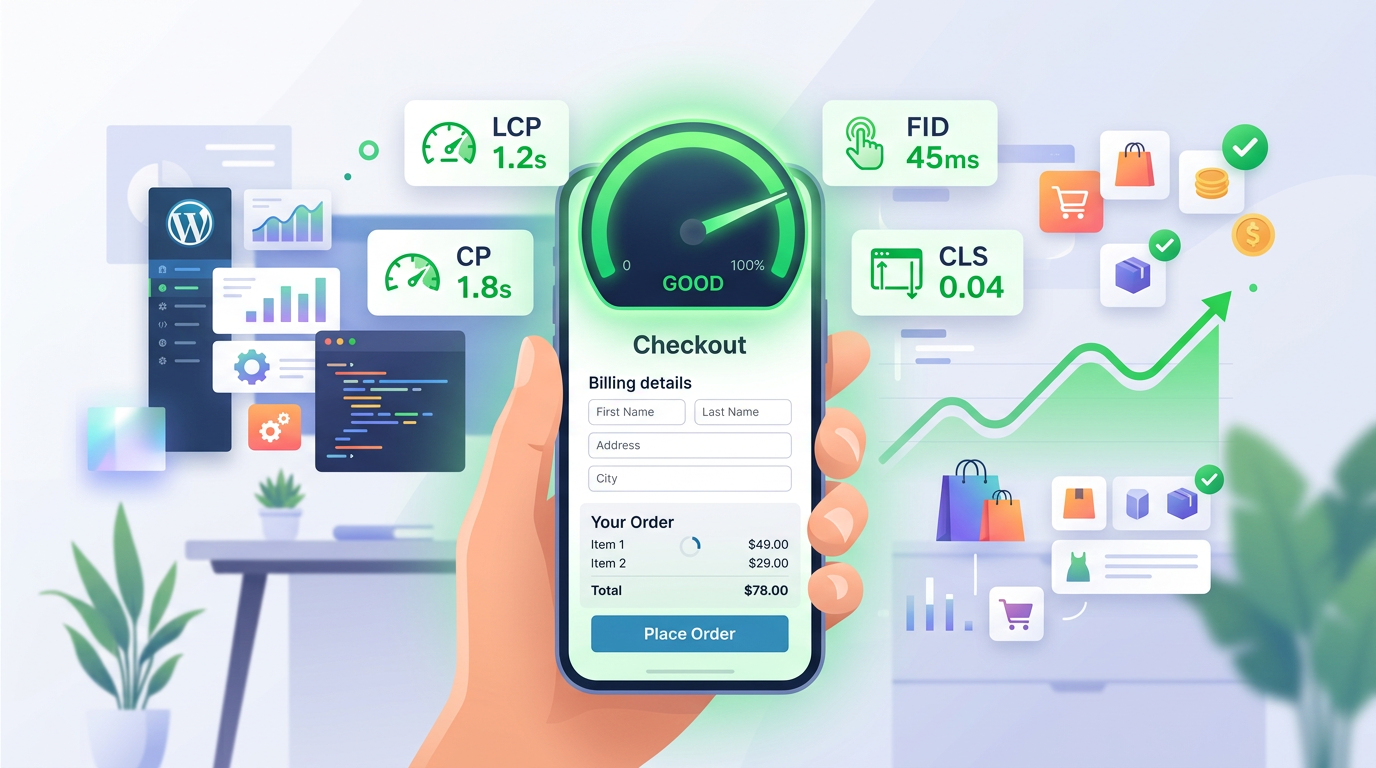
Google measures user experience through three specific signals. Largest Contentful Paint (LCP) tracks how long it takes for the biggest visible element to render. First Input Delay (FID), now largely replaced by Interaction to Next Paint (INP), measures the lag between a visitor tapping a button and the browser responding. Cumulative Layout Shift (CLS) quantifies visual instability when elements move unexpectedly. For WooCommerce stores, these metrics directly correlate with cart abandonment. If your LCP exceeds 2.5 seconds, mobile users typically leave before seeing pricing. If CLS spikes above 0.1, accidental clicks on misaligned checkout fields destroy trust.
What Are the Standard Thresholds?
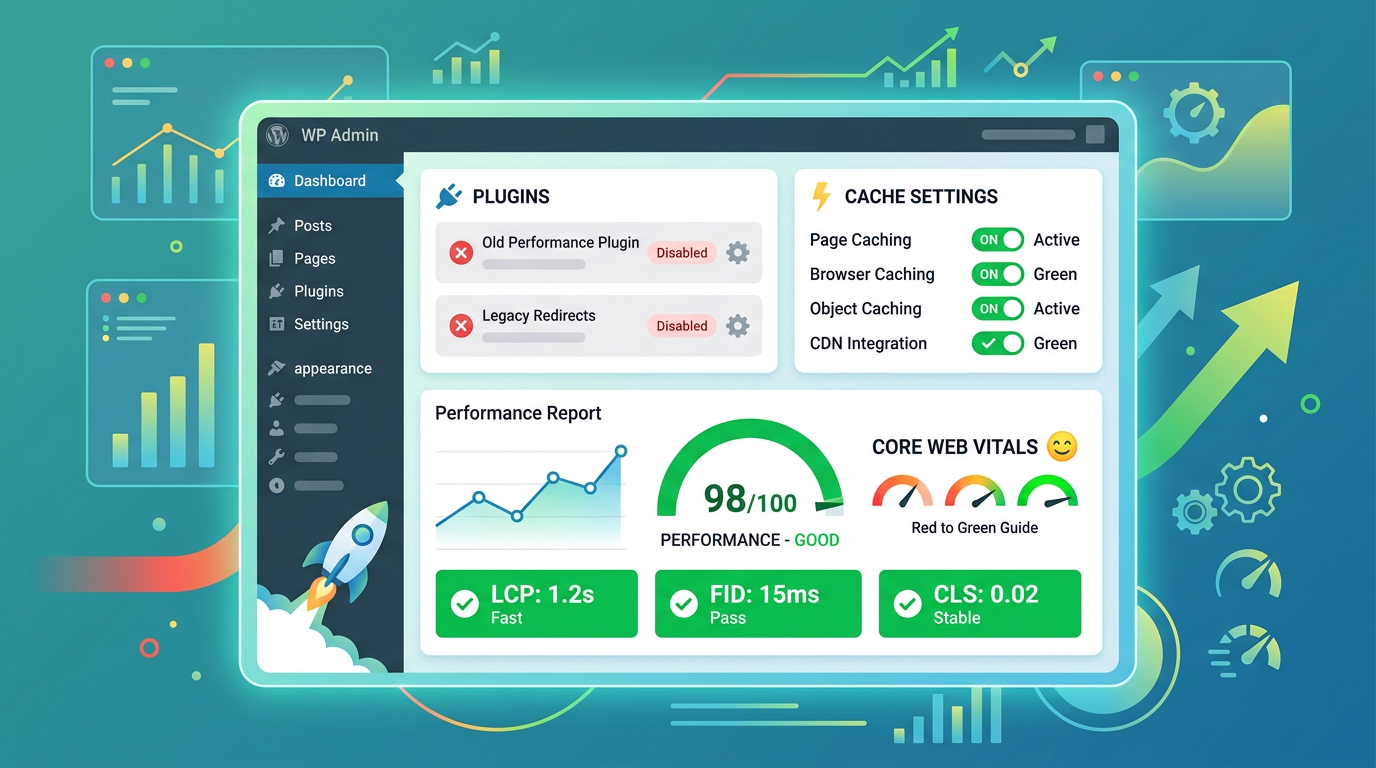
Google categorizes scores into three tiers: Good (green), Needs Improvement (orange), and Poor (red). LCP should land under 2.5s, INP under 200ms, and CLS under 0.1. These thresholds apply to the 75th percentile of real visitors, not lab averages. You can hit green in PageSpeed Insights but still fail field data if your caching rules miss logged-in users or cart fragments. Always prioritize real-user monitoring over synthetic tests.
How to Measure Your Scores Accurately
Field vs Lab Data
Synthetic tools like GTmetrix or PageSpeed Insights simulate visits from specific servers. They are useful for debugging, but they ignore your actual visitor geography, device throttling, and session cookies. Field data comes from the Chrome User Experience Report (CrUX) and reflects the 75th percentile of real traffic. If your lab scores are green but field data shows red, your optimization rules are likely bypassing dynamic WooCommerce pages. Check the Core Web Vitals report in Google Search Console to identify which URL groups trigger warnings.
Running a wordpress speed test
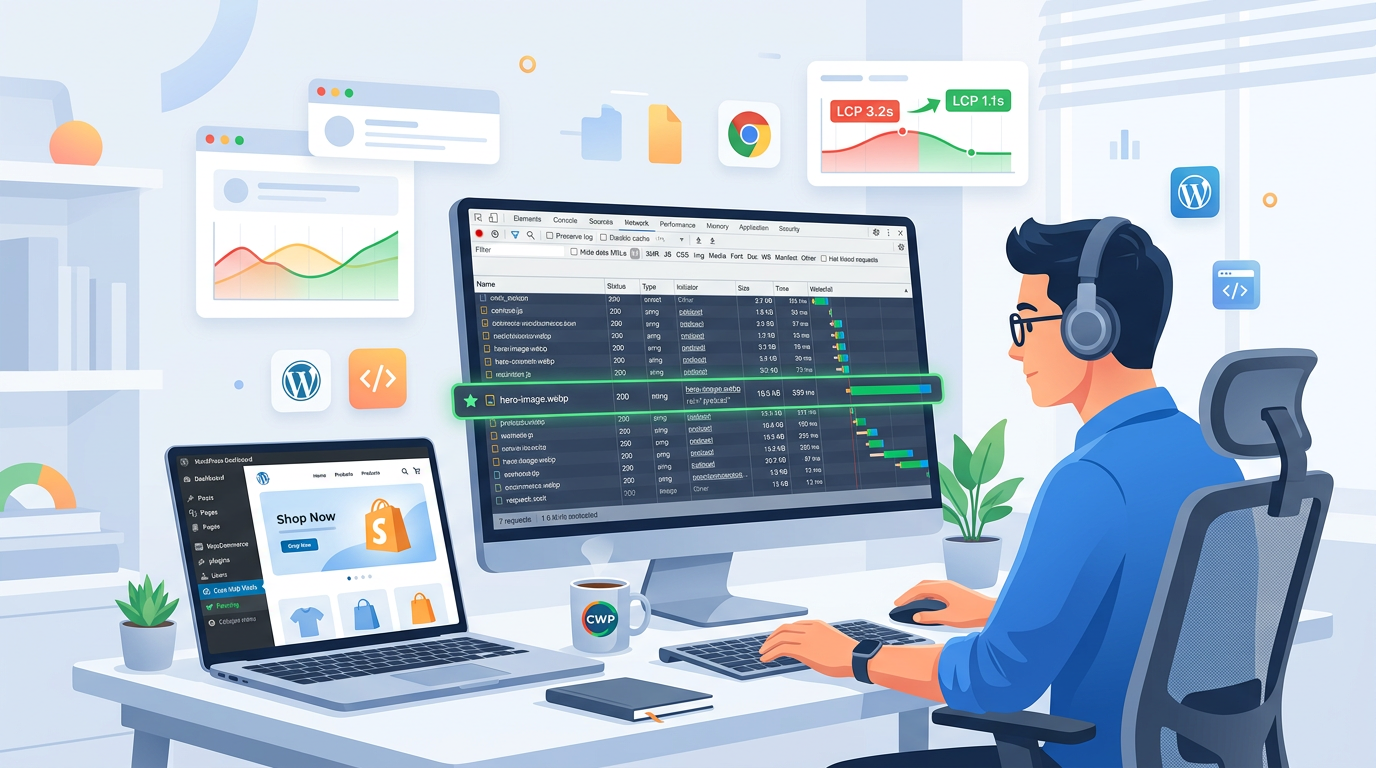
When auditing, run a wordpress speed test on three distinct templates: the homepage, a product category, and the cart/checkout flow. Dynamic pages require different caching strategies than static content. Use Chrome DevTools Lighthouse in incognito mode with 4G throttling enabled. Record the waterfall chart to spot render-blocking resources. Pay attention to the "Serve static assets with an efficient cache policy" warning, which often points to misconfigured edge rules or missing `Cache-Control` headers. Verify that your origin server returns a Time to First Byte (TTFB) under 600ms; anything slower indicates PHP execution bottlenecks or database query delays.
Fixing Largest Contentful Paint (LCP) Bottlenecks
Image Optimization & Preloading
The LCP element is almost always a hero image, product thumbnail, or large background banner. If WordPress loads it via lazy loading, the metric will fail because the browser waits to fetch it. You must explicitly preload the LCP image in the HTML head. Add this to your theme's `functions.php` or use a hook in your optimization plugin:
```php add_action('wp_head', function() { echo '<link rel="preload" as="image" href="' . esc_url(get_theme_mod('hero_image_url')) . '">'; }); ```
Ensure the image is served in WebP or AVIF format, sized exactly to the display dimensions, and delivered with explicit `width` and `height` attributes. Missing dimensions force the browser to guess the layout space, triggering cascading delays. Navigate to WooCommerce > Settings > Products > Display and set catalog image dimensions to match your theme breakpoints. Never rely on CSS to resize oversized uploads; the browser still downloads the full file. Use a server-side image processor like Imagick or WebP Express to generate responsive `srcset` variants automatically.
Eliminating cls web vitals & Script Delays
Resolving Layout Shifts
The cls web vitals metric punishes unexpected movement. Common culprits in WooCommerce include ad slots, dynamic price calculators, and font swaps. Always declare explicit dimensions for images, iframes, and video embeds. For custom fonts, use `font-display: swap` but pair it with a size-adjust fallback to prevent text reflow. WooCommerce cart fragments often inject HTML into the DOM after initial paint, causing shifts. Disable `wc-cart-fragments` on pages that don't need live updates, or defer the script until user interaction:
```php add_filter('woocommerce_enqueue_cart_scripts', '__return_false'); ```
Test shifts by scrolling the page rapidly while recording the Layout Shift panel in DevTools. Any red flash indicates an element expanding without reserved space. If you use third-party review widgets or trust badges, wrap them in containers with fixed `min-height` values so the browser allocates space before the external script loads.
Managing JavaScript Execution
Heavy third-party scripts (Facebook Pixel, Klaviyo, live chat widgets) block the main thread, destroying FID/INP scores. Defer non-critical JavaScript and inline only what is required for initial paint. Use `async` or `defer` attributes strategically. If a plugin loads a 400KB jQuery bundle on every page, switch to a lightweight alternative or dequeue it on checkout:
```php add_action('wp_enqueue_scripts', function() { if (is_checkout()) { wp_dequeue_script('heavy-analytics'); } }); ```
Keep the critical JavaScript payload under 170KB compressed. Anything larger delays interactivity and pushes INP past the 200ms threshold. Audit your active hooks with Query Monitor to identify functions running on `wp_head` that enqueue scripts unnecessarily. Remove inline styles that force layout recalculation and consolidate CSS files to reduce HTTP requests.
Infrastructure & Theme Decisions
Hosting, CDN, and Cache Rules
Software optimization cannot overcome a sluggish origin server. WooCommerce requires high PHP memory limits, object caching (Redis/Memcached), and a reverse proxy. A properly configured wordpress cache layer must bypass static caching for cart, checkout, and account pages while aggressively caching product archives. Implement edge caching via a CDN to serve assets from locations near your buyers. Set TTL values carefully: short TTLs for dynamic fragments, long TTLs for media.
| Hosting Type | PHP Worker Limit | Object Cache Support | Impact on CWV |
|---|---|---|---|
| Shared | 1-2 | None | Fails under cart AJAX requests; high TTFB |
| Managed WooCommerce | 8-16 | Redis/Memcached | Stable LCP/CLS; handles cart fragments efficiently |
| Cloud/VPS | Unlimited | Self-managed | Best INP scores if tuned correctly; requires DevOps |
Theme and Plugin Bloat
Lightweight themes outperform multipurpose builders on Core Web Vitals. Avoid themes that enqueue 15+ CSS files or load page builders on every request. Audit your active plugins. Deactivate unused WooCommerce extensions like booking systems or complex shipping calculators if they aren't needed on every page. Each active plugin adds database queries and script registrations. Use the Query Monitor plugin to identify slow hooks and heavy PHP execution times. Keep your database optimized by clearing transients and post revisions weekly. Run `DELETE FROM wp_options WHERE option_name LIKE '%transient%'` during maintenance windows to prevent option table bloat.
Conclusion
Mastering wordpress core web vitals demands disciplined asset ordering, precise cache boundaries, and ruthless script management. Stop chasing synthetic perfection and focus on field data that reflects actual shopper behavior. Implement explicit preloads, reserve layout space, and defer non-critical code to lock in green scores across all device types. Dreamfox Media builds performance-focused WooCommerce extensions that streamline these exact optimizations without breaking dynamic checkout flows.
FAQ
- how to improve core web vitals wordpress?
- Start by optimizing images, preloading the LCP element, and deferring non-critical JavaScript. Configure your cache rules to bypass dynamic cart pages while aggressively caching static assets, and always measure improvements using real-user field data.
- What is a good Core Web Vitals score for WooCommerce?
- Aim for LCP under 2.5 seconds, INP below 200 milliseconds, and CLS under 0.1. These thresholds represent the 75th percentile of real visitor experiences, not synthetic lab averages.
- Does caching break the WooCommerce cart?
- Improper cache rules will definitely break the cart by serving stale HTML to logged-in users. You must exclude checkout, cart, and account URLs from page caching while keeping product archives fully cached.
- How do I fix CLS on mobile product pages?
- Reserve exact dimensions for all images and embeds, disable lazy loading on above-the-fold assets, and defer cart fragment scripts until they are actually needed. Explicit height declarations prevent the browser from reflowing content when media loads.
- Should I use a page builder for better performance?
- Heavy page builders typically inject excessive CSS and JavaScript that harms Core Web Vitals. Use a lightweight, code-first theme or a minimal block editor setup to keep the critical rendering path clean and fast.
- What is the difference between LCP and INP?
- LCP measures how quickly the largest visible element renders, while INP tracks the delay between a user interaction and the browser response. Both require different optimization strategies: asset preloading for LCP and script deferral for INP.